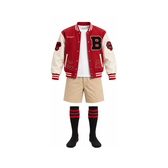
Sporty outfit ideas
Start live try on with a baseball uniform or sportswear reference to explore an athletic look on camera. Record a short clip so you can review the overall style later.
 Live Face Swap
Choose an outfit and compare the original frame with the try-on result. Pick a look, then try it with your own camera.
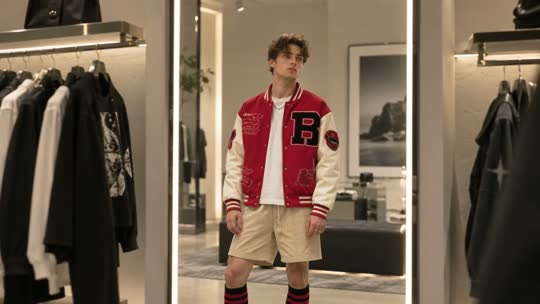
Close the camera before changing the AI engine.
Record the generated result only. The original preview, controls and countdown are not included.
Start the transformation and wait for a live result before recording.
Camera preview stays on your device. Starting sends your reference image and camera video to the model service. Recordings stay in this browser.
Keep the outfit, camera and result together for live try on. Choose a clothing reference first, then start a session when you are ready.
For live try on, select a built-in outfit or upload a garment image you have permission to use. A clear view of the clothes helps you compare the main colors and shape with the result.
Allow camera access, face the camera and adjust your position for live virtual try on. Keep your upper body visible for a shirt or jacket. For a full live try on outfit, step back enough to show the relevant body area.
Sign in with available credits, review the displayed rate and confirm the processing notice. Select Start try-on to begin live try on. Watch the result and check how the garment is represented as you move.
When your live try on result appears, choose Record to capture a clip. Use Stop to end the session, then replay and save before leaving the tab. To explore another outfit, end the session, choose a new reference and start again.
Ending a recording does not end live try on or its credit usage. Use Stop to finish the AI session and turn off the camera.
Choose a direction for live virtual try on from the garment references below. Pick a look and explore different outfits with your camera.
Start live try on with a baseball uniform or sportswear reference to explore an athletic look on camera. Record a short clip so you can review the overall style later.
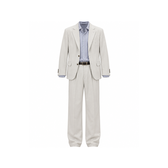
Choose the suit reference for live virtual try on when exploring a more dressed-up appearance. Use the preview for visual inspiration while planning an occasion or an on-camera look.
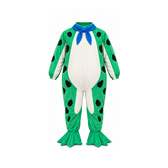
Use live try on to explore a playful frog costume or a mecha armor reference. Try a different silhouette for a character idea and save a clip for a creative project.
Live try on uses an ongoing camera feed, so you can explore an AI outfit while changing your pose. For live virtual try on, the garment image supplies the clothing reference and your camera supplies the view of you.
Review your live try on result before saving. Check the neckline, sleeves and main garment color, along with the overall style. AI can reinterpret clothing details and may also change nearby areas of the image.
Use live try on for visual styling inspiration. When buying clothes, choose a size using the retailer’s measurements and fitting guidance.
For live virtual try on, choose a front-facing garment image with a plain background and clearly visible clothing.
Keep your body visible during live try on and avoid strong light directly behind you.
Keep the relevant body area in your live try on view and reduce objects blocking the clothing.
Review the initial result, then try gentle movement and check how the outfit changes.
Replay a short live try on clip to inspect the clothing details before recording a longer take.
For live virtual try on, you need a supported browser, a working camera and an outfit reference. Choose a built-in look or upload a garment image. Sign in with available credits when you are ready to generate.
Live try on uses your ongoing camera feed to show an AI outfit on you. The upload field is for a garment reference. A photo of yourself does not replace the live camera input.
Choosing a live try on outfit and previewing your camera are free. AI generation uses credits at the rate shown before starting. Recording, replaying and saving add no extra AI charge, while an active generation session continues to use credits. Starting temporarily reserves credits; unused reserved credits are released after usage is settled.
For live try on, use one JPEG, PNG or WebP image, at least 512 × 512 pixels, up to 4 MB and 16 megapixels. Choose a clear, front-facing view of the garment on a plain background. A small product thumbnail, a crowded collage or clothing partly hidden behind objects gives you less detail to work with. If you are unsure about your image, begin with a built-in outfit and learn the camera workflow first.
Live try on helps you explore a look. It does not measure your body or predict a garment’s physical fit, size or fabric behavior. Check the seller’s size chart and measurements before buying.
Live virtual try on interprets the clothing reference rather than reproducing every detail exactly. Camera framing, lighting, pose and the garment image can affect the result. Try a clearer reference and a steady, well-lit view, then check the main colors and shape again.
Yes. Record your live try on result, replay it on this page and save the video in a format supported by your browser. Microphone audio is optional and off by default. Recordings stay in this tab until you save them, so keep it open until your download is complete.
Save any recording you want to keep, then stop the current live try on session. Choose another outfit reference and start again. Keep your camera position and lighting similar so it is easier to compare the overall looks. The tool shows one live outfit at a time; review saved clips to compare different references. A new session uses credits at the rate shown before starting.
Your camera preview stays on your device. When you confirm and start live virtual try on, the garment reference and camera video are sent to the selected AI service for processing. Recordings stay in your browser and are not uploaded by the recording feature.
Live try on runs in your browser. You need camera permission and browser support for the live connection; recording formats depend on your browser. If the camera does not appear, check the site’s camera permission and whether another application is using it.
Before starting live try on, confirm that your local camera preview is visible and your garment reference has loaded. Check that you are signed in, have enough credits and have reviewed the start notice. If the camera is unavailable, close other apps using it and check browser permission. If the AI connection fails, end the attempt and check your network before trying again. A failed connection does not prove that a garment or browser is unsupported; follow the message shown in the tool to decide what to check next.
Choose a garment reference for live virtual try on, preview your camera and explore a different style. When you are ready, use credits to bring the look into your live view.
Choose an outfitLearn more in our Privacy Policy