
How to Face Swap a Video Online and Keep the Original Audio
Upload a short MP4 and a reference portrait, check the credit cost, then preview and download your face swap with its original audio.
If you already have a video, open the Video Face Swap workspace, sign in, then add the clip and a reference portrait. Check the credit cost before generating. The finished MP4 keeps the source AAC audio, so you can check the dialogue in the preview before you download.
15-second silent walkthrough of the local demo workspace. Follow the file previews, credit quote and download button.
1. Prepare a short MP4 and a reference portrait
- Video. Use a 1–30 second MP4 up to 32 MB with H.264 video and AAC audio, or a clip with no audio track. Start with one shot of one person whose face stays visible.
- Portrait. Choose one clear JPG, PNG or WebP up to 4 MB. A front-facing photo in even light is a good starting point. Use footage and portraits you have permission to use, and confirm you have permission from both people.
- Browser. Use a recent browser that supports H.264 WebCodecs. If you get a browser compatibility message, try another supported browser.
For a first pass, choose one short sentence and leave a little room before and after it. Save that segment as a copy so you can compare the finished clip with the original.
2. Select both files in the workspace
If you see Sign in to generate, sign in first, then return to the workspace. Under Source Video, choose the short MP4. Under Replacement Face, choose the reference portrait. Check the filenames and previews, then confirm that you have permission to use the footage and both faces.
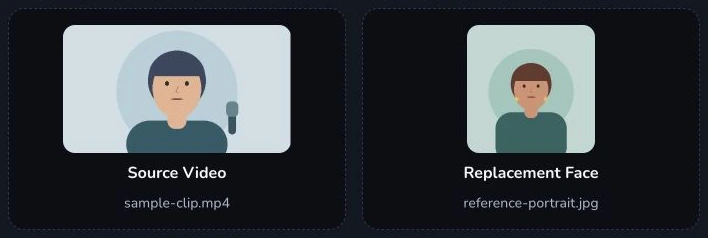
The workspace shows the source clip and reference portrait side by side. The screenshots use local demonstration material.
3. Check the credit cost before generating
Video face swap generation uses credits. After you sign in, review the maximum credit cost shown next to Swap Face. Select Swap Face when you are ready to generate. Wait for the result preview to appear. Previewing and downloading a completed MP4 use no additional credits.

The example shows where to find the quote. Check the maximum in your own workspace before starting.
4. Play the result with sound and download it
Press play in Result Preview. Listen through the sentence and watch the face as the speaker moves. The MP4 retains the source AAC track, including any dialogue and background sound. If your source has no audio track, the result is silent. Select Download MP4, then play the saved file once before importing it into an editor.
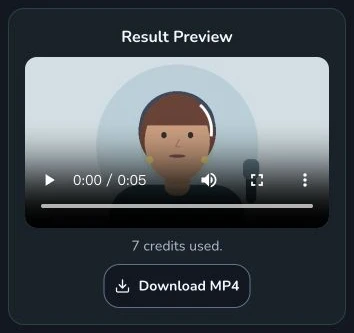
Preview the result, check the credits used and save the MP4. The result and credit usage are local demonstration data.
If your clip will not load or has no sound
- Longer than 30 seconds or larger than 32 MB. Trim a copy to the moment you want to edit. If the trimmed copy still exceeds 32 MB, re-export it at a lower bitrate.
- Wrong format. Export an MP4 with H.264 video and AAC audio. Check the export settings even if the file already ends in
.mp4. You can also export without an audio track for a silent result. - No sound in the result. Check that the source plays with sound and that the preview player is unmuted. If the source has no audio track, select a clip with the audio you want to preserve.
- Preview fails after generation. If the workspace shows Retry preview, use that button to try preparing the result again.
Open the Video Face Swap workspace
to try it with your own clip. To film a new clip with your webcam, follow the
live face swap recording guide
.