
How to Put Your Face on a Reaction GIF
Turn a selfie and a short animation into a personal reaction GIF. Choose a readable expression, match the portrait, then preview and save the loop.
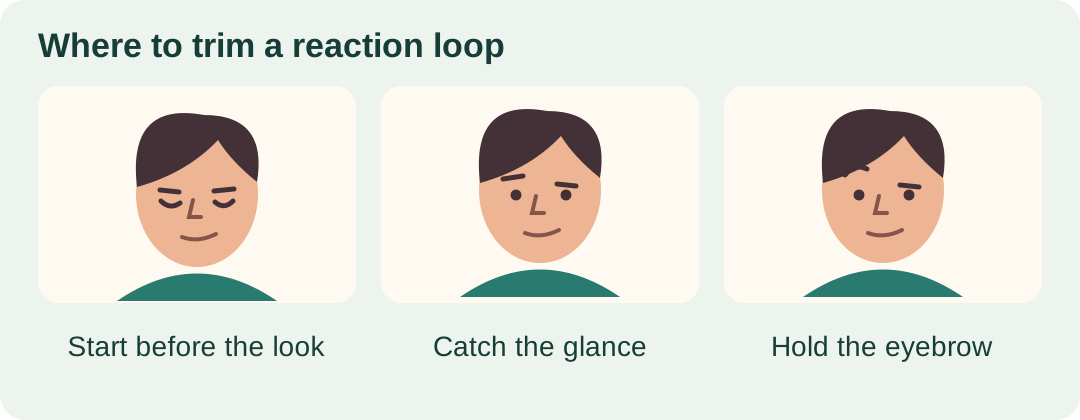
Your friend texts, “I have a perfectly reasonable explanation.” You already know the look you want to send back. It’s the slow glance up from a desk, one eyebrow raised, followed by a second of silence. Put your face on that reaction and it becomes a reply you can use every time your friend has another perfectly reasonable explanation.
You can make it with two files: a short animated GIF containing the reaction and a still portrait of yourself. The GIF supplies the movement. The portrait tells the tool whose face to use. For this walkthrough, imagine a friend has filmed the eyebrow raise and given you permission to use it. Here’s how to take that little performance from your downloads folder to a chat, with the timing that made you want to save it in the first place.
See which file goes in each slot, then check a finished loop at chat size. The workspace is Live Face Swap; the downloaded example is from FreeGIFFaceSwap.com.
1. Pick the part of the GIF that tells the joke
Play the original once at about the size you expect to see it on a phone. Look away for a moment, then look back. Can you catch the expression in one loop? A raised eyebrow that fills half the frame is easy to read. The same eyebrow on somebody standing at the far end of a conference table might take three viewings to spot. Pick the close shot if you have both.
For this GIF face swap, choose an animated GIF between 1 and 5 seconds long, up to 12 MB, showing one clear face. If you’re making the source from your own footage, save the short selection as an animated GIF before you upload it. A screenshot of the best frame can help you choose a portrait later, but keep the moving file for the actual swap.
An eyebrow raise has three beats. Keep enough of the first and last beats for the middle one to make sense.
To find your start point, drag back from the raised eyebrow until the person is looking down again. For the end point, let the eyebrow settle and hold for a moment. Try playing just that selection. If it feels as though someone is repeatedly interrupting the reaction, you probably cut the ending too close. If you spend most of the loop waiting for something to happen, shorten the lead-in. Once you like the rhythm, save a copy so you can come back to the same cut.
2. Match your portrait to the moment that matters
Pause the loop where the expression is easiest to recognize. Notice which cheek you can see more of and whether the camera looks down at the person or meets them at eye level. Now open two or three selfies beside that frame. In our example, a photo of you turned slightly toward the desk is a closer match than a straight-on passport picture, even if the passport picture has more pixels.
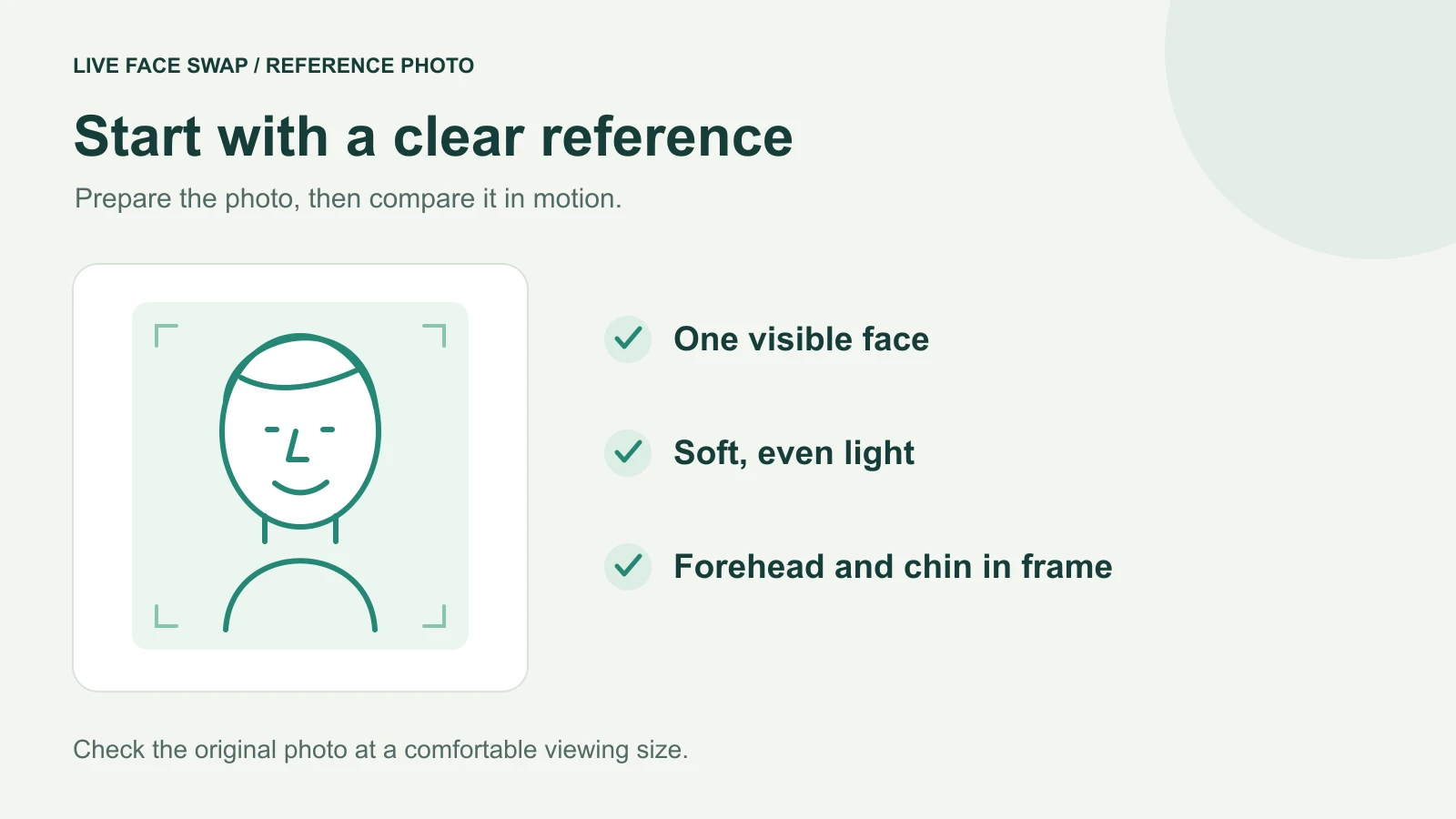
Use the paused frame to choose the angle. Then check the portrait itself for visible eyes, even light, and enough detail around the brows.
If your favorite selfie has sunglasses resting across one eyebrow, take a fresh one. Stand near a window, turn your head to roughly the angle in the GIF, and look toward the camera. You can leave your expression relaxed. Trying to hold one brow up while taking the picture often adds a squint, and the source already supplies the eyebrow movement. Choose a JPG, PNG, or WebP portrait up to 4 MB with just your face in view.
Before continuing, open the two files from the folder you plan to upload from. This catches an easy mix-up if your phone saved several similar portraits or you have both a thumbnail and the original animation. Give them names you can recognize in a file picker, such as “desk-glance.gif” and “window-portrait.jpg.”
3. Make the GIF face swap
- Open the GIF Face Swap tool in a recent desktop version of Chrome or Edge. Find the workspace with the two file selectors. If it asks you to Sign in to generate, sign in and return to the workspace.
- Under 1. Original GIF, choose your trimmed animation. Under 2. Replacement face, select your portrait. Read those labels once more before proceeding, particularly if both files show you or both filenames start with the same date.
- Read the permission statement. It covers the files, the adults pictured, and sending the prepared video and portrait to Xmax for face replacement. If you’re using your friend’s desk reaction, make sure they are comfortable with that use before confirming.
- Look at the maximum credit charge displayed for this GIF. When you’re ready, select Swap face in GIF. Give the workspace time to prepare the files and process the request. If the processing message is already visible, you can return to the page to check the result.
- Play the result through two full loops. On the first pass, look at the whole reaction as your friend would see it. On the second, follow the eyes from the downward glance to the raised brow. After successful generation, the workspace shows the actual credit charge.
If a file is rejected before generation, check the file named by the message. For the animation, verify the format, running time, and size. For the portrait, check its format and size separately. That distinction can save you from trimming a perfectly good GIF when the problem is a large phone photo. If you see Retry preview after processing, try that control first so you can inspect the existing result.
4. Decide whether to keep it or change one thing
The best test is to imagine the incoming message again. Play the result immediately after reading “I have a perfectly reasonable explanation.” If the look lands at the right time and you recognize yourself, save that version. A frame can look odd when paused for ten seconds yet pass unnoticed in a reply that lasts two. Judge the moving reaction at its intended size before spending time on another version.
If something does distract you, go back to the same moment in the original. Suppose the swapped face looks convincing at the desk but shifts during the glance up. Pause the source there. If you can still see both eyes clearly, try a portrait closer to that head angle while keeping the clip identical. If a hand or a coffee mug crosses the face at that instant, try a cut that begins just after the obstruction clears. Change one input per attempt so you can tell which adjustment helped.
Sometimes the expression works and the framing lets it down. If the eyebrow is tiny even in the original, crop a copy of the source more tightly around the person, leaving room above the head for the upward motion. Play that crop before trying another swap. You might discover that the mug on the desk is part of the joke and a slightly wider crop tells it better.
5. Download the loop and try it in a chat
Choose Download GIF, open the saved file, and watch the join between the last and first frames. The browser exports a looping GIF with a longest edge of up to 640 pixels. View it at chat size as well as in the larger preview. On the smaller version, check whether you can still see the glance and whether the final pause feels deliberate.
Attach the downloaded GIF from your files and send it to yourself first. Open the delivered message to check that the animation plays. If you see a still image, compare it with the file in your downloads folder. If that file moves, check which attachment you selected and try the chat app’s GIF or file attachment option. A screenshot taken from the preview will always capture only one instant.
Keep the version you actually enjoy sending and give it a name you’ll remember, like “sure-you-do.gif.” When your friend’s next explanation arrives, you can find it in a couple of taps and let the eyebrow do the talking.