
Multiple Face Swap GIF: How to Change One Face and Keep the Other
See how to choose one person in a two-face GIF, assign a reference portrait, and check the result when the faces cross.
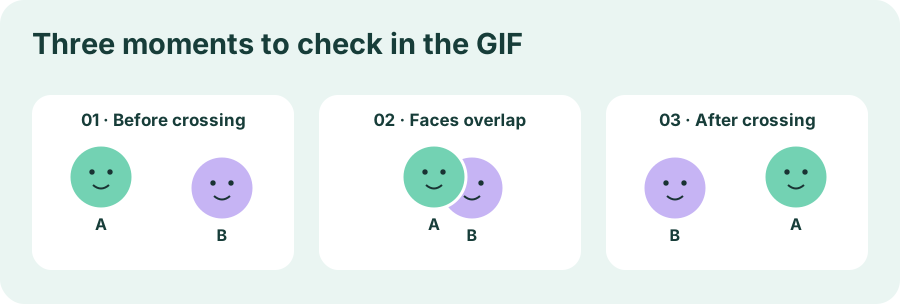
You have a GIF of two people reacting to the same surprise. One person leans into the frame, briefly passes in front of the other, and then moves back. You want to put your face on the person who leans in. The second person's reaction should stay as it was. The moment to check is when the two faces pass each other, even if the opening frame looks exactly right.
For a multiple face swap GIF like this, choose a tool that lets you assign a reference portrait to a specific person. Assign one portrait, leave the other person's slot empty if the tool allows it, and review the downloaded animation at the points where the two faces come closest. This walkthrough uses a two-person example. The diagrams illustrate what to look for during your own run.
Mark these three moments in the source before you upload it. They make it easier to find the same action in the exported GIF.
Choose the person by face, even when they change sides
Say A wears a green jacket and B wears a purple shirt. At the start, A is on the left. Halfway through, A leans across the frame and ends up on the right. “Replace the face on the left” works as a description of the opening frame. Across the whole animation, the instruction you want the tool to follow is “replace A.”
Look for an interface that shows separate face thumbnails or offers a way to select the target person. You need one input slot for A and a way to leave B unchanged. A product that offers multiple replacements can still require a portrait for every slot, so look at how the controls work before committing to a generation.
GetFaceSwap's GIF page describes a Multiple faces mode that lets users fill one person's slot and leave the other slots empty. The steps below follow that documented workflow. Interface labels and download availability can change. GetFaceSwap GIF Face Swap
Prepare a short clip with an easy first frame
Use a clip and reference portrait you have permission to edit and share. Pick one continuous shot in which you can see both people clearly at the beginning. A brief crossing later in the shot gives you a useful check, especially if the two people end on opposite sides. For an easier first attempt, choose a version where both faces are visible again before the GIF loops.
Open the original GIF locally and watch it twice. On the first pass, decide which person should change. On the second pass, note where the two faces are closest and where both faces become visible again. A paused screenshot of each moment can serve as a reference when reviewing the export. If the result plays at a different speed, match the movement or pose instead of relying on the timestamp.
Pick one clear reference portrait with an unobstructed face. Keep that portrait fixed while checking whether the edit follows A. If you change both the portrait and the GIF between attempts, it becomes harder to tell which change affected the result. Save a separate copy of the original animation so you can compare it with each export.
Assign the portrait and export a test loop
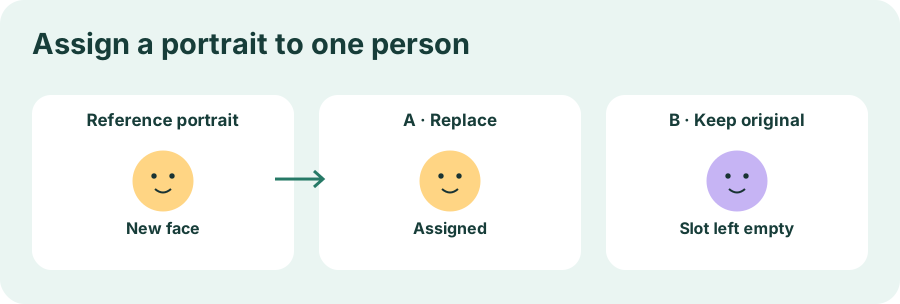
Illustration of the intended assignment. A receives the new portrait. B's slot stays empty.
- Choose Multiple faces and add the GIF. If the interface provides a Detect faces action for custom uploads, run it and wait for the face thumbnails. For your first pass, check that the preview shows the actual shot you want to edit.
- Identify the thumbnail for A. Compare it with the source GIF. If the thumbnail is small, use context you can recognize in the source, such as glasses, hair, or the direction the person is facing. If you're uncertain which thumbnail belongs to A, choose a clearer excerpt before you generate.
- Add the replacement portrait to A's slot. Leave B's slot empty. Check the assignment one more time after the portrait thumbnail appears. When the site shows a price or usage allowance, check the terms for this generation and its download.
- Generate and save the animation. Review the result preview, then open the downloaded file separately. The preview helps you spot an obvious assignment mistake. The saved copy lets you inspect the actual file you plan to use, including its loop and any changes introduced during export.
If the tool identifies only one person, compare that thumbnail with your reference frames before proceeding. It may have found B while missing A. Start the GIF a little earlier if that puts both faces in a clearer pose, or try a shorter excerpt in which A stays visible. Then run detection again and check the assignment before requesting another result.
Check the export at three points
Before the crossing. Look at the two people in the opening frames. A should carry the replacement face while B still looks like B. If the wrong person changes immediately, check which slot received the portrait. If A changes in the preview but the downloaded file appears static, check the exported file separately before judging what happened in later frames.
At the crossing. Pause around the moment the faces get close. Look for the replacement face moving to B, appearing on both people, or briefly dropping off A. Compare the same action in the original. A hand passing in front of A's face or a profile disappearing behind B may explain why the edit changes at that moment. Record what you can actually see in the two frames. A visible artifact alone can't identify how a particular tool tracks faces.
After they separate. Follow A into the first clear frame after the crossing. Check whether the replacement returns to A and whether B remains recognizable. Then let the downloaded GIF loop. A brief wrong-face frame can be more noticeable in a repeating reaction than it was during a slow inspection.
You may see small differences in color or sharpness across the export, including on B's side. Distinguish those from a change to B's facial identity. For a useful side-by-side check, match the moment, use the same display size, and look at the eyes, nose and mouth across a few consecutive frames.
Fix the failure that you can see
If B has the replacement throughout the GIF, go back to the face assignment and change the selected slot. If the result is right at the beginning and goes wrong only during the crossing, keep the assignment and reference portrait fixed. Shorten the GIF so it ends before the overlap, or start a new excerpt after both faces become visible again. Compare the shorter export with the original at the matching pose.
If a result looks clean until a person leaves and comes back, check whether the reaction still works without the exit and re-entry. Keeping the key expression often matters more than preserving the full clip. If B's reaction is part of the joke and must stay in frame, use a shorter moment with both faces visible or try a tool that can let you specify the target person more precisely.
When A alone carries the joke, a crop can make the job simpler. Preview the crop through the whole loop so A stays in frame, then use the single-face GIF workspace with the cropped animation. If you need to keep both people in view, keep the two-person composition and review the export with the three checkpoints above.