
Why Your GIF Face Swap Flickers When the Face Turns
Follow a three-run head-turn test. Inspect the same frames with two portraits, then see what a shorter cut keeps and what it costs the loop.
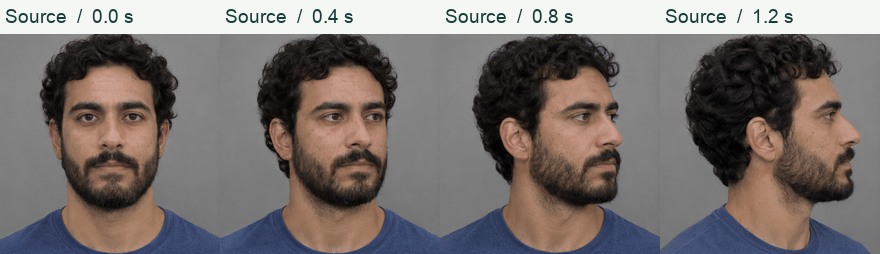
Pause a reaction GIF on the first frame and the face can look quite convincing. Let it play and, just as the person looks to one side, the mouth seems to belong to somebody else. It is tempting to upload a sharper selfie. Before doing that, find the first frame where the swap changes in a way the original reaction doesn't. It matters whether you are trying to fix one bad pose, a jump already in the source, or a hard cut from the last frame back to the first.
We tried two edits on the same head turn. In one, we kept the entire GIF and changed the reference portrait. In the other, we kept the first portrait and cut the last pose. Below you can inspect the inputs, the downloaded results, and the same instant across the three runs.
Watch the nearer eye at 0.8 seconds, then compare the angled portrait and the shorter cut. All three swaps were exported from FreeGIFFaceSwap.com.
A turn you can take apart, one frame at a time
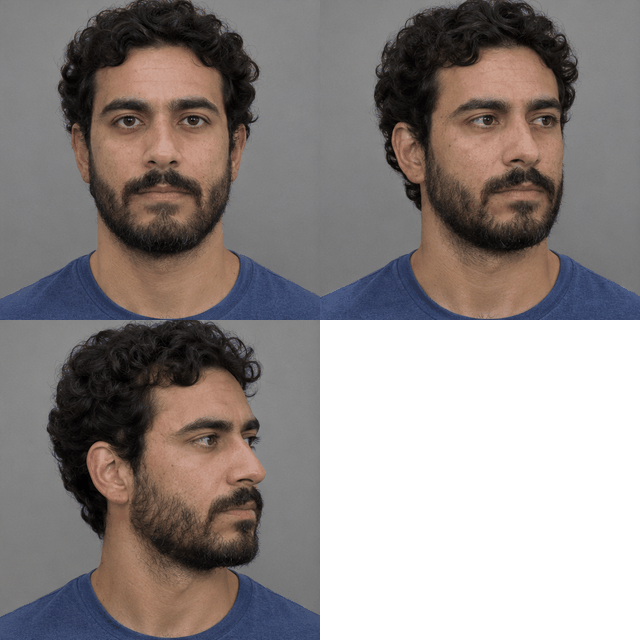
We made a deliberately simple test GIF from four generated stills of a fictional adult. He looks at the camera, glances right, turns farther right, and finally looks almost directly to the side. Each pose stays on screen for 0.40 seconds. There are no in-between drawings, so you can reproduce the comparison without trying to pause a fast video at exactly the right moment. The source already moves in steps. Any jerk you see in all four original poses belongs to that construction.
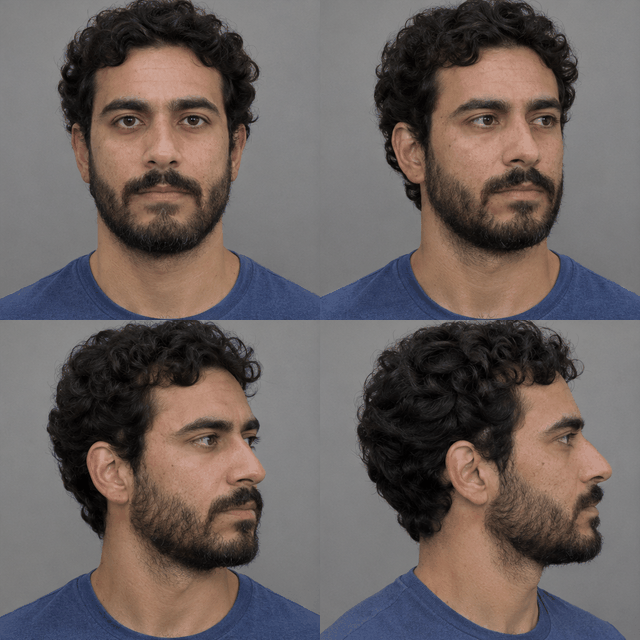
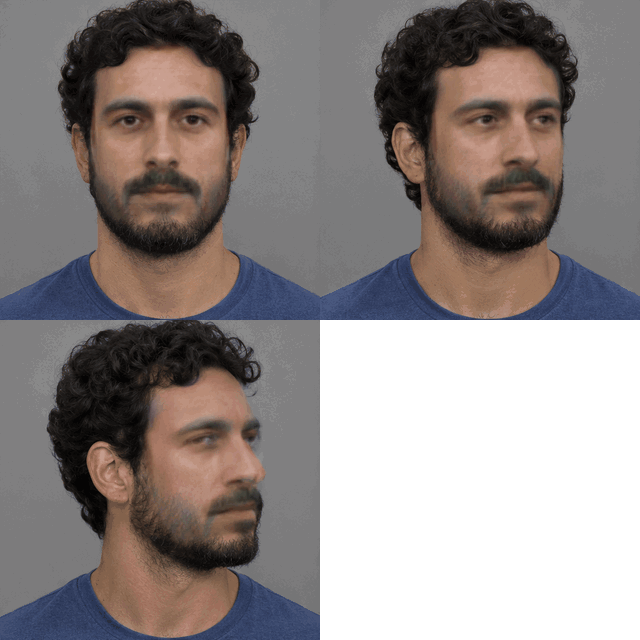
The second fictional adult supplies the replacement face. His ginger mustache makes a convenient landmark against the original subject's dark beard. We prepared two portraits of him at the same resolution: one facing the camera and one looking toward the right of the picture. They are separate generated images, so expression and fine detail can vary as well as angle. This is the kind of practical comparison you can make with two selfies from your camera roll. It does not isolate the mathematical effect of changing just the angle of a head.
We used the same single-face editor at FreeGIFFaceSwap.com for all three runs. We let it process each input and downloaded the animation before comparing frames. To try the workflow in this site's GIF Face Swap workspace, use the source GIF as the original animation and a portrait as the replacement face. The samples below show the external editor's output; another engine can make a different choice at the same pose.
Find the first change that belongs to the swap
Put the original turn and the baseline export next to each other. Start with the nose. As the subject looks right, the nose travels toward the edge of the face and the far eye gets narrower. Both of those are ordinary changes in the original. Now look at the upper lip. Does the color or shape of the mustache change abruptly while the source beard stays much the same? That is a more useful clue than the fact that the whole head moved.
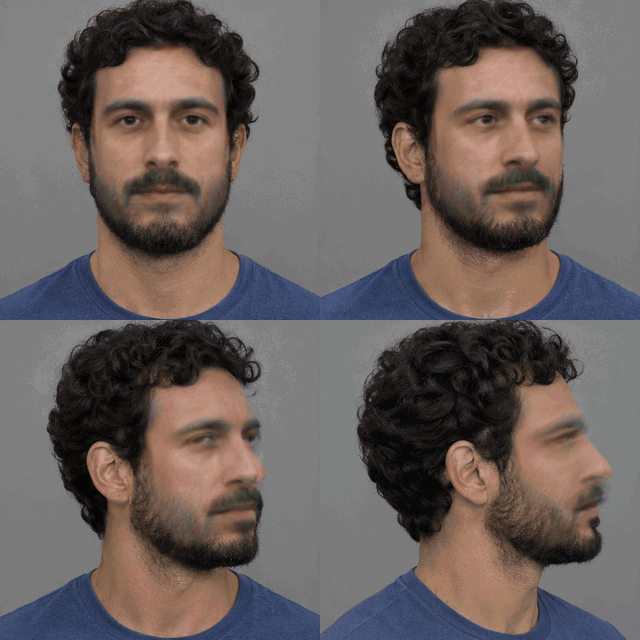
A head turn changes how much evidence the picture gives the editor. In a frontal portrait you can see the spacing of both eyes, both corners of the mouth, and both sides of the jaw. In a near profile the nose hides part of the far cheek and one eye can disappear altogether. At that point a small change in the area being replaced can be conspicuous in motion. The final GIF lets us see where an edit changed. It cannot tell us exactly what the editor's face detector decided internally.
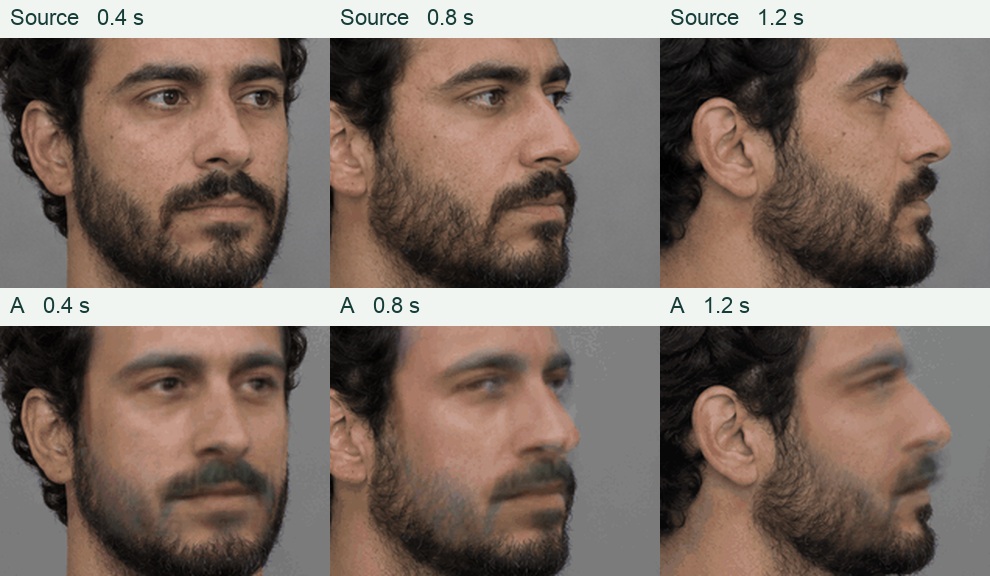
In run A, the first clear loss of eye detail was at 0.8 seconds. At 0.4 seconds the nearer eye still had a readable outline. At 0.8 seconds the eyelid looked smudged; in the profile at 1.2 seconds the visible eye and upper lip were softer still, even though the original profile had a distinct eyelid. The dark beard remained visible throughout. What this sample reproduced was a sudden drop in local detail as the angle changed. We did not see the face alternate repeatedly between two identities.
Keep the turn and change the selfie
For the second run we left the four-frame input alone. The only file we replaced was the portrait. Compare the front-facing reference with the angled reference. The second face points toward the same side of the picture as the subject in the turn. Both files show the whole head in similar light. That makes this a more informative swap than comparing a sharp daylight selfie with a heavily filtered picture taken in a dark room.
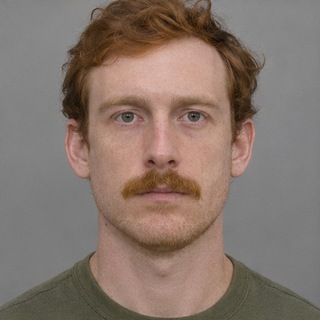
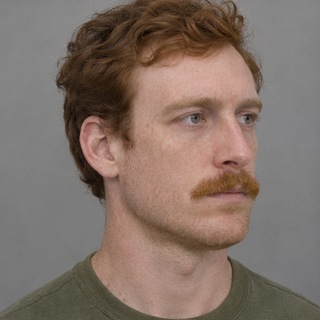
Start the second export at the third pose. Cover the hair and shirt with your hand if they distract you; both belong mostly to the scene. Look at the eyebrow over the nearer eye, the bridge of the nose, and the line where the mustache meets the cheek. Then go back to the first pose. A portrait you choose to improve the turn has to carry the opening shot too, especially in a short reaction that repeats every couple of seconds.
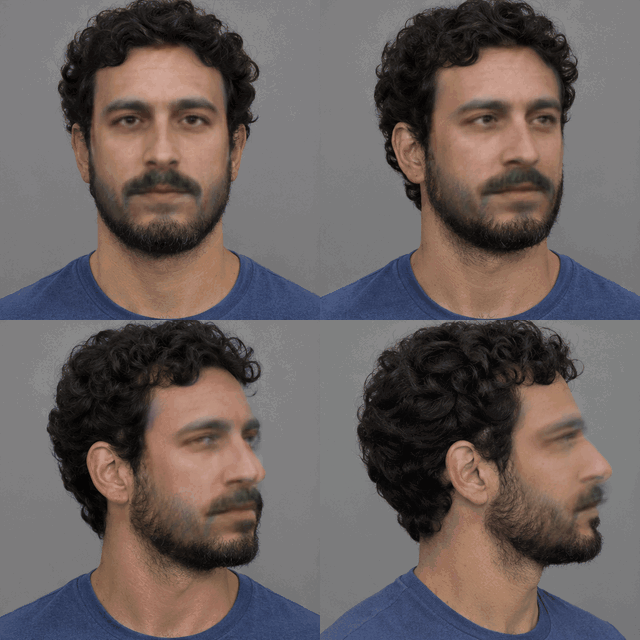
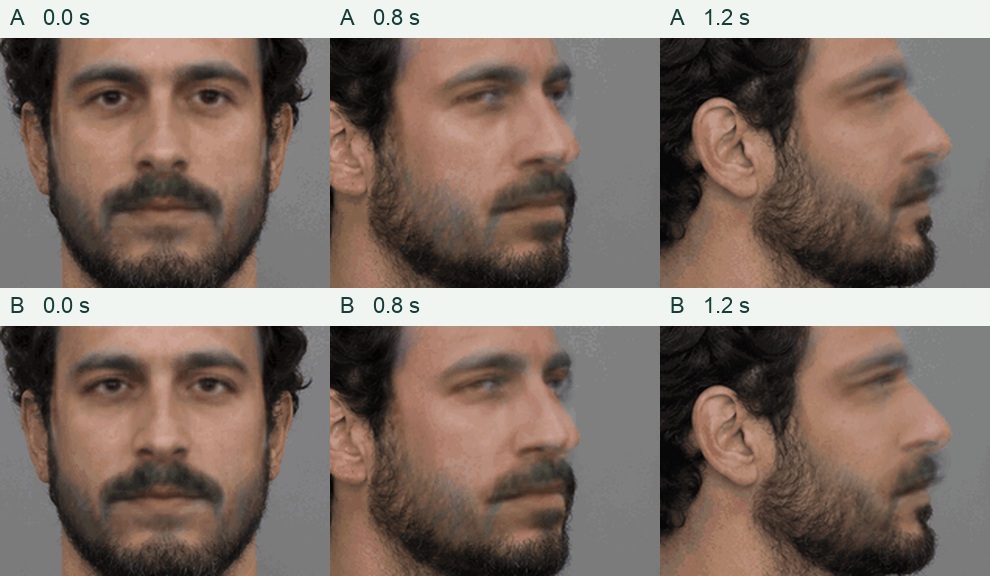
Run B kept the full turn, but the angled portrait did little for the soft eye. Compare the middle column first. Neither row brings back the crisp lid in the source at 0.8 seconds. The mouth and brow differ slightly between the rows; at the normal playback size the shared loss of definition is much easier to spot than the difference between portraits. On this evidence we would keep whichever portrait gives the preferred opening face. We would not spend another generation on the same angle change expecting it to repair the profile.
Keep the selfie and cut the last pose
We made the short source GIF from the first three poses in the full sequence. Its first frame, dimensions and pace are the same. The trimmed export uses the original front-facing reference again. This is a separate generation run with a shorter input. It gives a fairer answer to “what if I trim before uploading?” than cutting off the last frame of a completed swap and calling that a new result.
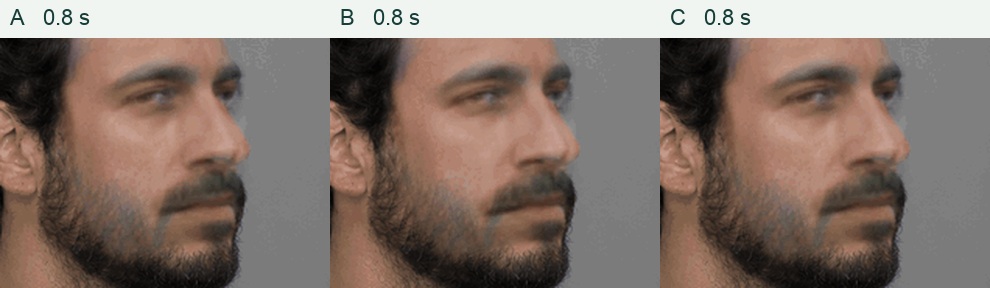
Run C removed the softest profile, but it did nothing to sharpen the earlier frames. We decoded both downloads and compared the full RGB image at each shared timestamp. At 0.0, 0.4 and 0.8 seconds, all 320 × 320 pixels matched between A and C. The frame delays matched as well. The short loop lasts 1.20 seconds instead of 1.60. The softer eye at 0.8 seconds is now the last thing you see before the face jumps back to the front. If that earlier frame is the one bothering you, this particular trim ends one pose too late.
Trimming also changes the meaning of a reaction. Stop on the partial turn and the character seems to be glancing at someone just out of view. Play the full turn and he is looking away quite deliberately. Before choosing the cleaner clip, imagine the text message you want to answer. If the joke depends on the character turning his back on the conversation, losing that beat might be a worse trade than keeping a slightly rough profile.
Use the same check on your own reaction GIF
First, play the original at chat size. Watch one loop without pausing. Decide which part actually reads as the reaction. Then find the last good frame and the first distracting one. A hand crossing the cheek, a rapid camera pan, or a cut to a different person gives you a different editing problem from an otherwise clear face slowly turning. If you notice the same jump in the original, start by changing the source cut.
Next, choose a new portrait only if the troublesome pose matters. Freeze that pose and use it as a guide when taking your selfie. Turn your nose toward the same side of the picture, keep the nearer eye visible, and avoid a shadow across the mouth. Keep the first selfie and save the new export under another name. Compare a shared frame near the start as well as the frame you were trying to fix. It is easy to fall in love with one good still and overlook a weaker opening.
Finally, check the loop boundary separately. Watch the final frame jump back to the first three or four times. If the face stays recognizable through the movement but the last-to-first cut feels abrupt, give your selection a different ending. If the unwanted face appears only after the expression has already landed, a shorter cut may be enough. If that face appears halfway through a gesture you need, keep the duration and try a better-matched portrait or a clearer source. Save the version whose movement still says what you meant.