
GIF Face Swap Upload Failed? Check the Format, Length, and File Size
Check the saved GIF format, loop duration, file size, frame count, portrait and browser when a GIF face swap upload fails.
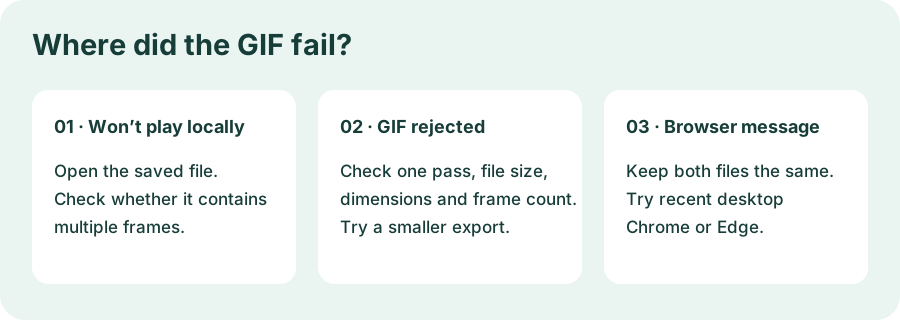
Your GIF plays on the page where you found it. You save it, pick a portrait, and start a face swap. The tool asks you to choose an animated GIF again. Before you download another copy or start over with a different reaction, find out which file failed and when. The animation you saw online may have been served as a video. A genuine GIF may be too long, have too many frames, or take up too much space after the browser prepares it.
Start with the saved file, then check the duration of one pass and the size of the GIF. The examples below use the Live Face Swap GIF workspace, whose current project settings accept animated GIFs from 1 to 5 seconds and up to 12 MB as the original input. Other tools can set different limits.
Use the point where the process stopped to decide what to inspect first.
1. Open the copy you actually saved
Find the file in your downloads folder and open it directly in a browser or a viewer that supports animated GIFs. Watch for the action to play and repeat. A web page can show an animation while the file you saved is only its preview image. If the saved copy shows a single frame, try a second viewer before concluding the file is static. A file manager thumbnail often shows just one frame.
Next, check the file's extension and the format reported by a media viewer or editor. A moving image on a website might be an animated WebP or an MP4. If you downloaded one of those, import the file into an editor and export it as an animated GIF. Changing the filename from .webp or .mp4 to .gif leaves the original file contents in place. The workspace checks the file contents, so a new extension alone will still fail.
If you saved a still frame and no longer have the original motion, return to the source and look for the original animation or video file. A GIF export can preserve motion that already exists in a file. Exporting a single still as GIF gives you a GIF image, which may have just one frame.
2. Time one pass of the reaction
A GIF might play continuously because it loops. Measure from the first frame to the last frame once in an editor. For the Live Face Swap workspace, keep that pass between 1 and 5 seconds. Include any pause at the beginning or end in the measurement. A reaction that looks like four seconds of movement may have a long held frame that takes the full animation over the limit.
Try a short cut that preserves the expression. Imagine a seven-second source with someone waiting, then looking up, raising one eyebrow, and holding the look. Cut the wait down first. Keep enough of the look-up that the eyebrow raise makes sense, and leave a short hold before the loop restarts. For a first attempt, aim comfortably inside the accepted range. Reopen the exported file and check its duration because a GIF editor may change frame delays during export.
If your loop is shorter than one second, start from a slightly longer section of the original. When the expression is already complete and the editor lets you adjust frame delays, you can hold the ending pose a little longer. Watch the result at normal speed. A longer hold gives the viewer time to read the expression, but a very long hold can make the file look frozen.
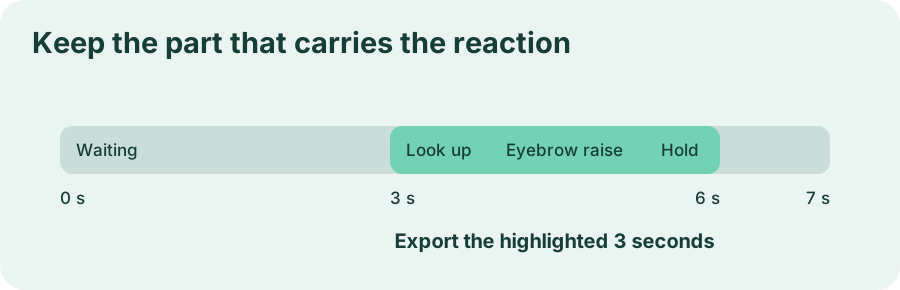
Illustrative timing. This cut keeps the look-up, the eyebrow raise, and part of the hold.
3. Reduce the dimensions or frame count if preparation still fails
Check the new file's size after export. The workspace checks more than the original 12 MB limit. The current project also caps the source canvas at 1,920 pixels on either side and accepts 2 to 250 frames. A short, high-resolution animation can pass the duration check and still exceed a different limit. Use your editor's image properties or timeline to inspect the dimensions and frame count.
Make a smaller copy from your original. Start by reducing the pixel dimensions and keeping the aspect ratio. Watch it at the size you expect to share, with particular attention to whether you can still read the eyes and mouth. If the file is still heavy or contains too many frames, export at a lower frame rate while preserving the original playback duration. The conversion should keep the expression recognizable from one frame to the next.
The workspace prepares a short clip and a portrait in the browser before sending them for generation. That prepared request has a separate size limit, so a GIF just under 12 MB can still fail at Preparing your files…. Try the smaller copy with the same portrait first. If it prepares successfully, you have isolated the change to the GIF. Save the smaller version with a new filename so it stays easy to tell apart from the original.
4. Check the portrait and the browser separately
If the error asks for a clear JPG, PNG, or WebP portrait, check the replacement photo field. The workspace accepts a portrait up to 4 MB. Choose a clear still image, open it locally, and confirm that you placed it in the portrait field. A GIF placed in that field, or a portrait placed in the GIF field, can send you looking for a problem in the wrong file. Keep your prepared GIF fixed while you test a different portrait.
If you see a message suggesting a recent desktop version of Chrome or Edge, start there with the same two files. The workspace needs browser support to decode GIF frames and prepare the clip. Local playback only tells you the browser can display the file. The preparation step has additional requirements. Retrying in a supported browser with the same inputs makes it easier to tell whether the browser was the issue.
If the page already says the GIF is being processed, the workflow has moved beyond local preparation. Read the status on the page before changing your source file. A sign-in prompt, a credit message, and a result preview or export error also call for different checks. For a problem that appears when you download the finished animation, start with the preview or export message and keep your source files handy.
Before you try again
Open the file you plan to submit and confirm it moves. Check that it is an animated GIF with a 1–5 second pass, then look at file size, dimensions, and frame count. Select the GIF and portrait in their own fields. If you need to make another attempt, change one item at a time and compare the message you get.
Keep the original download alongside the repaired copy. If you hit the same issue later, the two files give you a quick way to compare what changed.
Once the files prepare successfully, the reaction GIF walkthrough picks up with choosing a reference portrait that matches the expression, reviewing the result, and saving the finished loop.