
Is Live Face Swap Safe? Camera, Photo and Recording Privacy
Follow your reference photo, camera stream and recording through local preview, cloud AI, OBS and Meet. Check permissions, stopping and sharing.
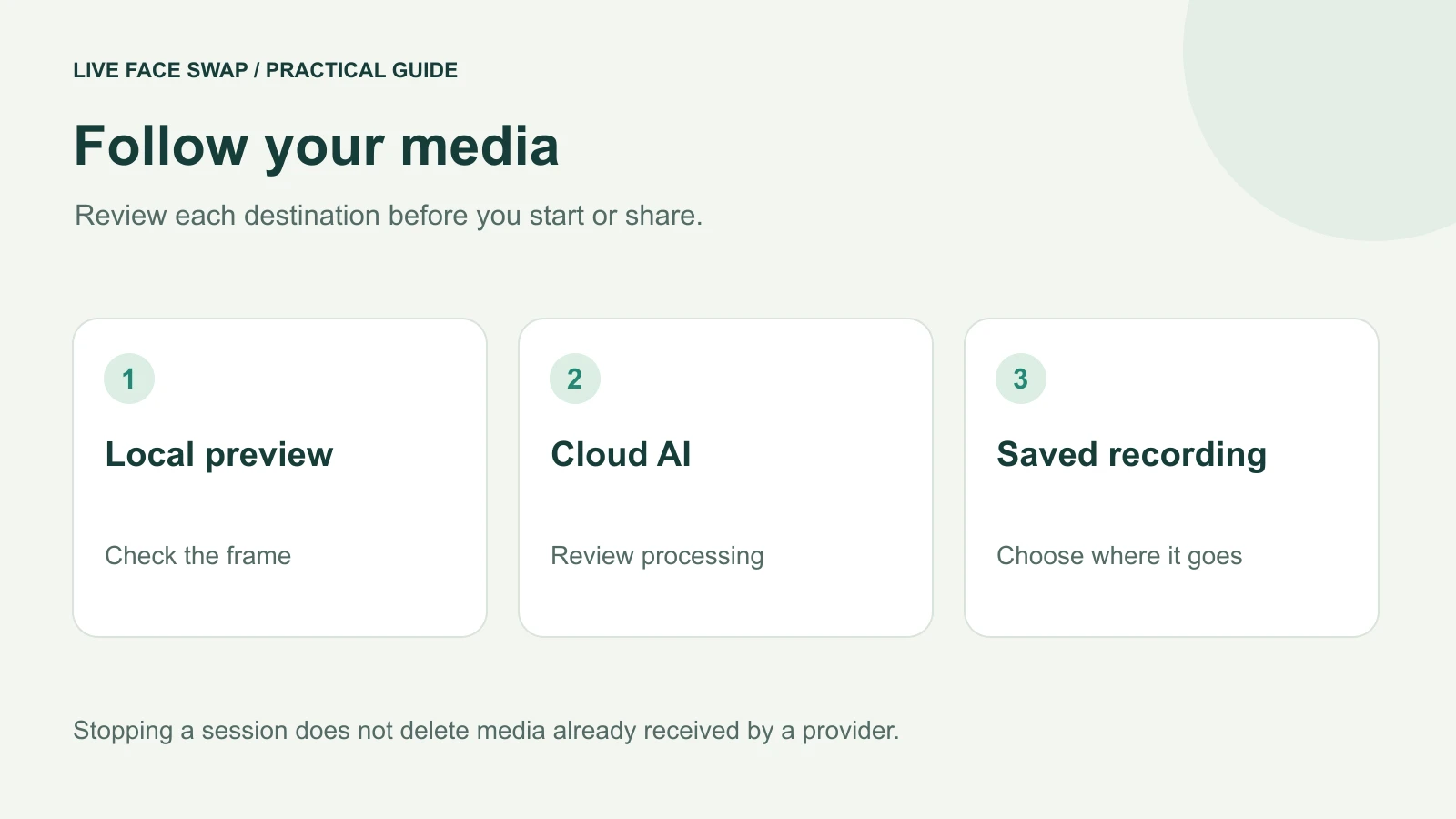
Is live face swap safe? Start by checking where your reference photo, camera frames and saved recording go. In this site's live workflow, choosing a reference and opening the local camera preview do not send those frames to the AI service. Starting generation sends the reference and live video for cloud processing. The optional recording stays in your browser until you save or share it.
Those are different decisions. You can check framing without starting AI, and you can stop before sending a personal portrait to a model. This guide shows the data flow and the controls to review before a short creative session. The site's privacy policy remains the detailed reference.
Follow one portrait through the workflow
Suppose you want to record a short performance using your own portrait. First, you select the photo. The live picker previews a locally selected reference in the browser. Next, Open camera requests camera access and displays your original picture. Selecting a look or opening that preview does not start the model.
When you deliberately start generation, the selected provider processes the reference and camera video to produce the result. Recording can then capture that result locally. Downloading creates a file in a location chosen or managed by your browser. Sharing that file adds a destination you should assess separately.
Stage | Where media goes | Your decision |
|---|---|---|
| Reference selection | Local browser preview | Choosing is separate from starting AI |
| Camera preview | Your browser | Check the original frame before generation |
| Live AI generation | Selected cloud provider | Read its processing and retention terms |
Live microphone recording | Local recording | Separate from the meeting microphone |
| Saved recording | Your chosen destination | Check local, synced and shared locations |
A browser interface does not establish that every stage is local. Equally, a locally recorded file does not mean the AI processing that created it happened on your device. Follow the media through each step instead of assigning one privacy label to the whole tool.
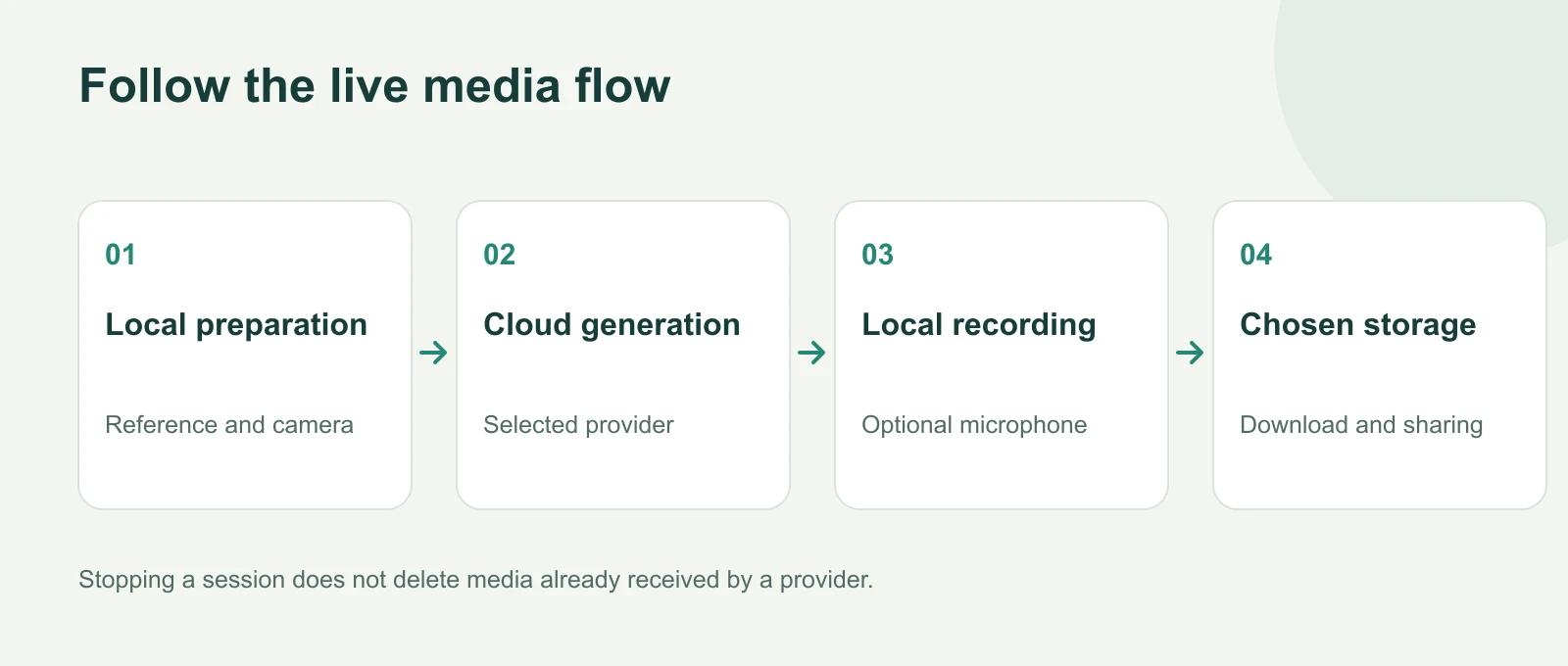
Live recording audio stays local; meeting audio is configured separately.
Before you allow camera access
Open the studio at its HTTPS address and check that you are on the intended site. Decide which physical camera you want to use and close another app if it is occupying that device. The browser's camera prompt is permission to access a device; it is not a promise about what happens after you start cloud generation.
Browser camera access requires a secure context and user permission. The site also offers Camera checks & session diagnostics for basic capability checks and camera selection. An “Available” result detects a browser feature, not consent from everyone in view or a passed end-to-end session. Camera permission requirements
Check the original picture before starting. Remove private documents, screens and other people from the frame. A face effect can leave parts of the body and background visible, and it can vary between frames. A transformed preview is not a dependable anonymity system.
Before you start AI generation
Read the notice for the selected engine. Prism's underlying provider is Xmax; Mirror's is Decart. Their connection paths differ, but both live modes involve cloud processing. Select a portrait you are comfortable sending for that purpose and keep unnecessary personal information out of it.
For Xmax generation, the browser SDK supplies the reference and camera stream to the provider's services. For Decart, the reference passes through the site's connection relay and camera video goes to Decart over WebRTC. The relay does not create a reference-photo library. The site retains account and usage records needed to manage and settle the session.
Neither route should be described as an offline face swap. The privacy policy links the providers' own processing terms. Their retention, deletion and possible improvement or training rules need separate review; this site does not promise zero retention or exclusion from training. If that processing does not fit your intended material, do not start with that material.
Keep camera video and microphone audio separate
Opening the initial preview asks for the camera without a microphone. When live output becomes available, automatic recording requests microphone access so the saved clip can include your voice. If you decline or no microphone is available, the recorder can continue with silent video.
In this live recording workflow, microphone audio stays local and is not sent to the AI model. That statement applies to the live recorder. An uploaded MP4 is a different workflow whose original audio can be sent with the prepared clip, as described in the privacy policy.
Before speaking, decide whether the recording needs sound. Use a short test phrase and inspect the saved file. A browser permission for one site or app does not determine what a separate meeting app records or sends. When calling through Meet or OBS Virtual Camera, configure the meeting microphone separately.
Understand what OBS and Meet add
The Prism Face Swap studio can open a separate Live Face Swap Output window for OBS capture. The window plays the current processed video; it does not install a system-wide camera. In OBS, capture the intended window and inspect all edges before recording or streaming. Check the active scene whenever you switch sources.
For users with the optional Meet extension installed, processed video can travel between the website and one selected Meet tab through local WebRTC. Meet then delivers it to participants under Google's policies. The extension does not send microphone audio to the AI service or independently record the call. Check its current installation availability; a prepared extension package is not evidence of a public store listing.
Treat a meeting preview, a local recording and a public broadcast as separate checks. Other participants can receive or record what you send, and a connection failure may leave them seeing a previously received frame. Do not use an effect as the only protection for sensitive surroundings or identity.
End the session, then check what remains
Switching tabs or applications does not end generation. The camera and AI can continue in the background, and active AI still uses credits. Use End session when finished and wait for the stopping and settlement states. Leaving or reloading the page is not a substitute for saving a recording first.
A stop request closes the local workflow and attempts to end the provider session. It does not delete media the provider has already received. A temporary network failure can delay confirmation, so check the site's session status when connected again instead of assuming every stage completed at once.
For the Meet extension, stopping and restoring the physical camera are separate actions. Review the explicit recovery confirmation before returning to the original camera. Do not assume protection continues after an extension is disabled, removed or no longer controlling that meeting tab.
Save recordings and support information carefully
The live recording is held in the original tab and is not uploaded by the recording feature. Download it before leaving. Once saved, it follows the storage and sharing rules of that device, folder or application. Check whether your chosen destination is synced or shared before putting a private clip there.
If you need help, send the step that failed, device, browser, visible error and session identifier. The extension's requested diagnostics omit reference images, video, URLs, pairing tokens and connection descriptions. Still review any log before sharing it. A general support attachment or image URL is not private face storage.
Use a portrait of yourself or an explicitly authorized adult, with permission for the transformation and intended sharing. Public availability of an image does not settle permission to use the depicted person's likeness. Follow the site's use rules and include a clear AI disclosure when presenting an altered performance.
For your first session, choose an authorized reference, clear the camera frame, check the provider notice and plan a short take. Then end generation, verify the downloaded file and decide deliberately where it goes next. The recording guide explains the save controls, and the credit guide explains background usage and settlement.