
Is Live Face Swap Free? Preview, Credits and Limits
See which live face swap actions are free, how Prism and Mirror use credits, when billing stops, and how to estimate a short session.
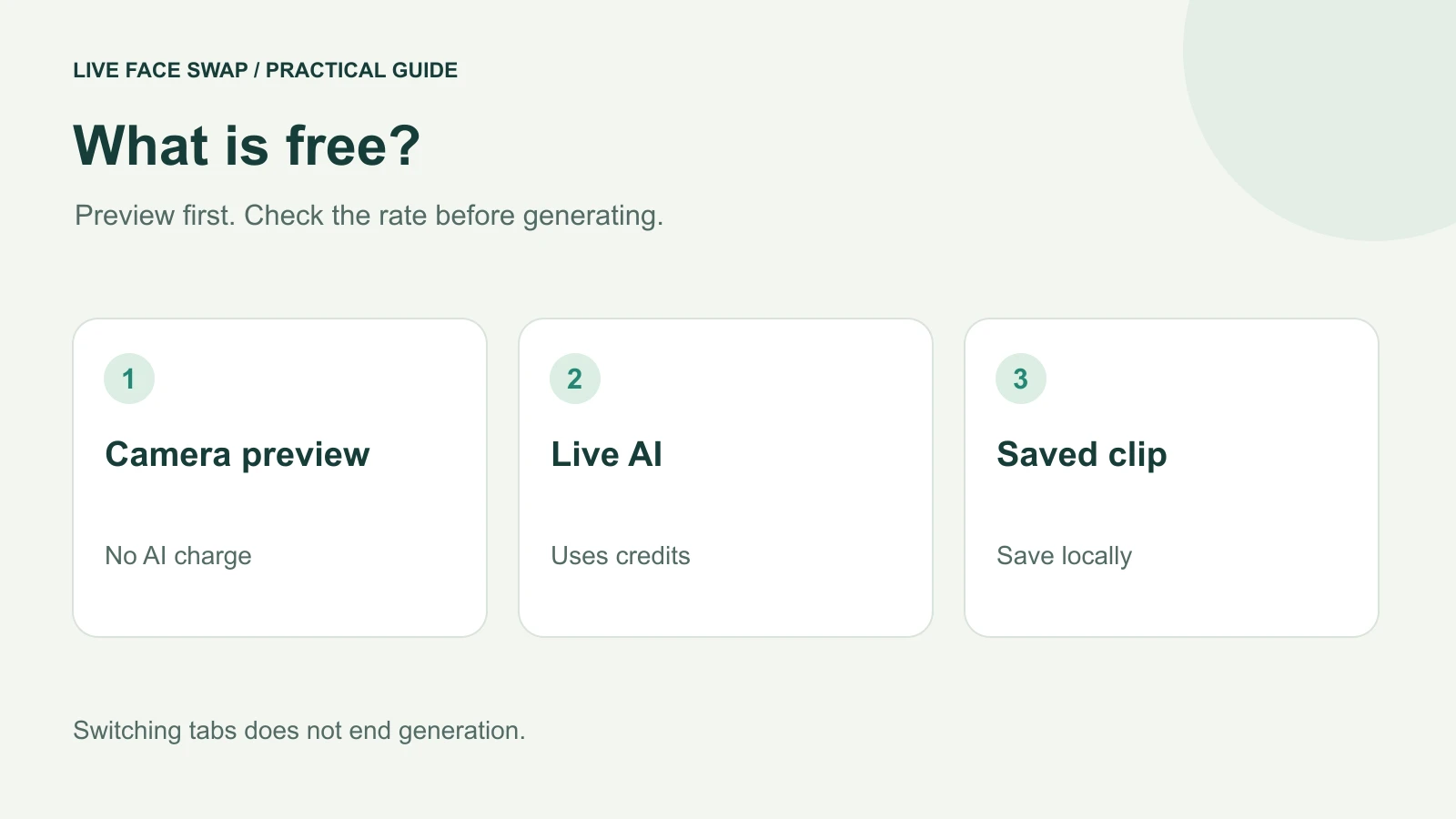
A live face swap online free search can mean several different things: opening a webcam, trying an AI effect, recording a result, or downloading a finished clip. On Live Face Swap, reference selection and the local camera preview add no AI generation charge. Running the live AI model uses credits. Recording, replay and download do not add another AI processing fee.
Start with the free preview to check your camera and framing. When you want a transformed result, read the selected engine's rate and available balance before starting. This guide explains how to do that without confusing a free camera preview with unlimited free generation.
Which parts are free?
Open the browser studio and choose a built-in look or an authorized reference photo. Selecting a look prepares your session; it does not start AI. Open camera requests camera access and shows your original picture locally. You can use this stage to adjust the angle, background and light before spending generation credits.
You will still see your own appearance in that preview. A selected portrait beside a moving camera image does not mean the model has already replaced your face. To obtain the transformed image, sign in when prompted and select Face Swap after reviewing the rate and usage notice.
Action | AI charge | What to check |
|---|---|---|
| Choose a reference | No | The thumbnail is preparation |
| Open camera preview | No | Original video stays local |
| Run live AI | Yes | Selected engine rate |
| Record or replay | No extra charge | A running model still uses credits |
| Download a clip | No extra charge | Verify the saved file |
Free recording means the capture feature adds no separate AI fee. It still needs generated video to capture. If the model remains running while you record, its normal generation charge continues. The same distinction applies when you use the result in OBS or a call.
Read the rate beside the engine
The workbench currently offers LFS Prism and LFS Mirror. Prism uses 1 credit per second. Mirror uses 20 credits per second. Mirror also supports Restyle and Try-On. Choose the effect and engine for the result you need; a higher rate is not a measured quality ranking.
Read the current quote before each session. Your balance is a number of site credits, not a fixed number of minutes across every model. For example, 1,200 credits corresponds to approximately 20 minutes at Prism's rate or one minute at Mirror's rate when the entire balance is available for that engine's confirmed usage.
Billed usage | Prism at 1 credit/second | Mirror at 20 credits/second |
|---|---|---|
| 10 seconds | 10 credits | 200 credits |
| 30 seconds | 30 credits | 600 credits |
| 60 seconds | 60 credits | 1,200 credits |
These examples show credit arithmetic, not promised lengths of usable footage. Prism bills connected time, including time after the real-time connection is established and before the first generated frame. Mirror bills generated seconds, rounded up. Setup, waiting and the final settlement can make the clip length differ from the amount used for billing.
Mirror needs at least 200 credits to reserve a ten-second budget. A reservation temporarily sets aside credits so the session can run. It is not the same as a final charge. Unused reserved credits return after settlement; usage that has not yet been confirmed can remain pending. Check the live rate table and billing details.
Try the camera before buying a plan
- Open the studio directly in your browser. Choose one authorized reference and the engine you intend to use.
- Select Open camera. Allow access if you want to continue, then check that your face is visible and the original picture moves.
- Open Camera checks & session diagnostics if a device or browser capability looks unavailable. This panel checks browser features; it does not certify the quality of a future AI result.
- Review the generation rate and your available credits. Stop here if you only wanted to check camera access.
- When ready for AI, sign in and deliberately start the transformation. Watch for a moving generated result before beginning your performance.
A brief first session helps you check the result, recording and save location together. Decide on a short line or movement before starting so you spend less connected time preparing your performance. A suggested short take is a planning aid, not an automatic spending limit.
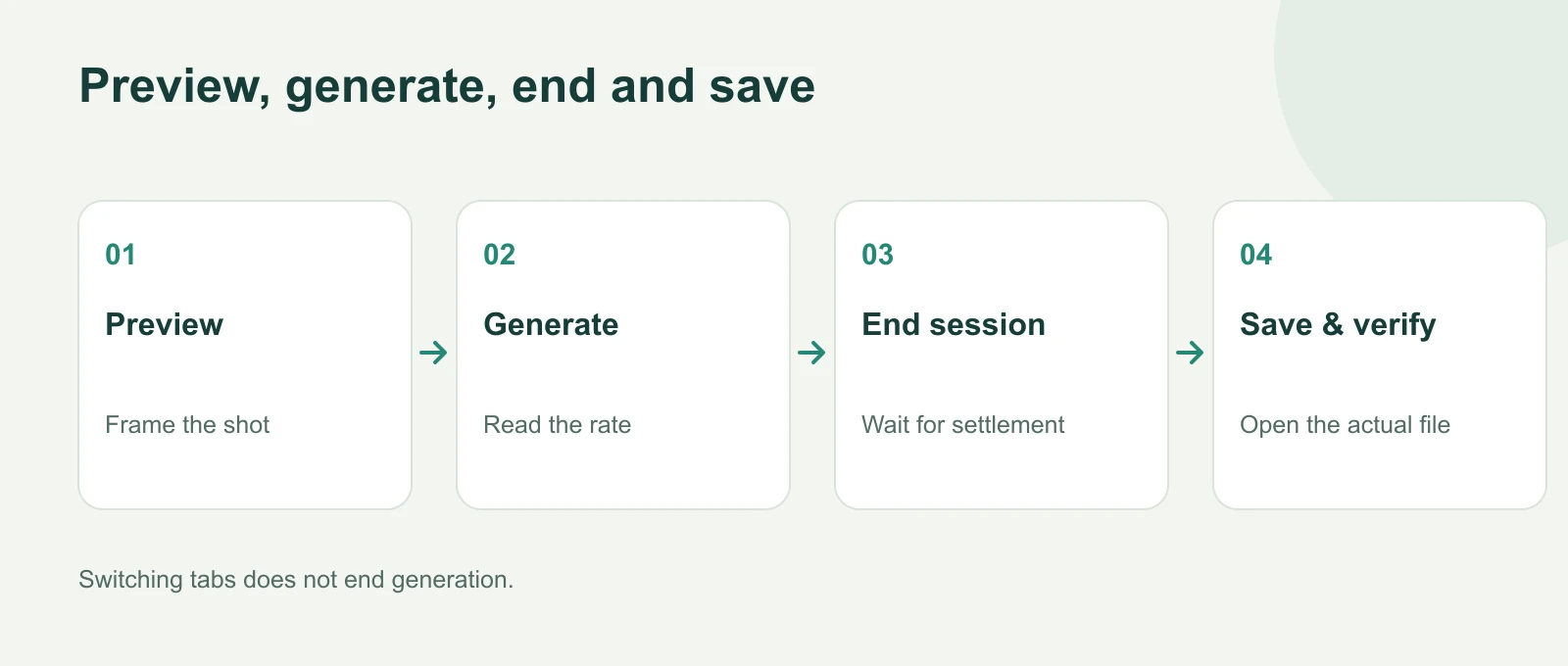
Generation uses credits until it ends; local saving adds no AI fee.
What about a free AI trial?
A free camera preview is available independently of a promotional AI trial. When a sponsored trial is enabled and your account is eligible, the workbench may show a separately labelled Prism trial using a preset. Availability can depend on account eligibility and the remaining sponsored budget. It is not a guaranteed sign-up allowance.
Read the trial message shown to your account. Uploaded references and other engines do not become free because a preset trial exists. When a trial ends, a paid session requires a separate start. If no trial control appears, use the normal displayed rate and balance rather than assuming generation will be free.
This matters when comparing tools. “Free download,” “free preview” and “free AI generation” describe different offers. A downloadable interface can still use a paid cloud model. An open-source setup can involve hardware, installation and model terms. Our browser, desktop and open-source guide explains those choices.
Stop generation when you have your take
Switching to another tab or application does not stop the site's AI session. Generation can continue in the background and continue using credits. Likewise, finishing a local recording, hiding its options or closing an OBS output window is not the spending control you should rely on.
Use End session in the workbench when you are finished. This ends the local recording and starts the generation shutdown and settlement process. Allow the stopping state to finish. If a network interruption leaves settlement pending, return to the workbench when connected and follow its status; a stopped local camera is not proof that the final usage has already been confirmed.
A previous recording can remain available while another session is active. Downloading that earlier clip does not stop the current session. Check the live status as well as the recording label so you know which activity is still running.
Save the clip without another AI charge
When the recording is ready, its save bar shows the clip status and duration. Select Download, then use Show recording options to reveal playback and sound information. End the active session before trying to play a clip when playback is unavailable during live output.
Open the saved file from your browser's downloads or the location you selected. A download request marks that you asked the browser to save; check that a playable file actually exists. The recording remains temporary in the original tab until you save it, so keep that tab open. Follow the recording and download steps.
Choose a purchase by the time you need
The pricing page offers monthly credits and one-time packs. Monthly credit batches currently last 60 days; one-time credit packs last 365 days. Review the currency, applicable taxes, renewal terms and current credit amount at checkout. Use the selected engine's rate when estimating a purchase, rather than the number of minutes shown for a different engine.
For a practical estimate, count the connected time for one short rehearsal and one final take. Leave room for startup, retries and the fact that not every generated second will become your final edit. This is more useful than planning around the exported clip length alone.
You can begin with the local preview, confirm that the camera works and read the rate before making any purchase. If the camera moves but the AI result never appears, use the troubleshooting checklist to identify the failed step before repeatedly starting new sessions.