
Live Face Swap Online vs Desktop Apps: Which Should You Use?
Compare browser services, desktop apps and GitHub projects by setup, privacy, recording, streaming output and cost. Choose a live face swap workflow that fits your task.
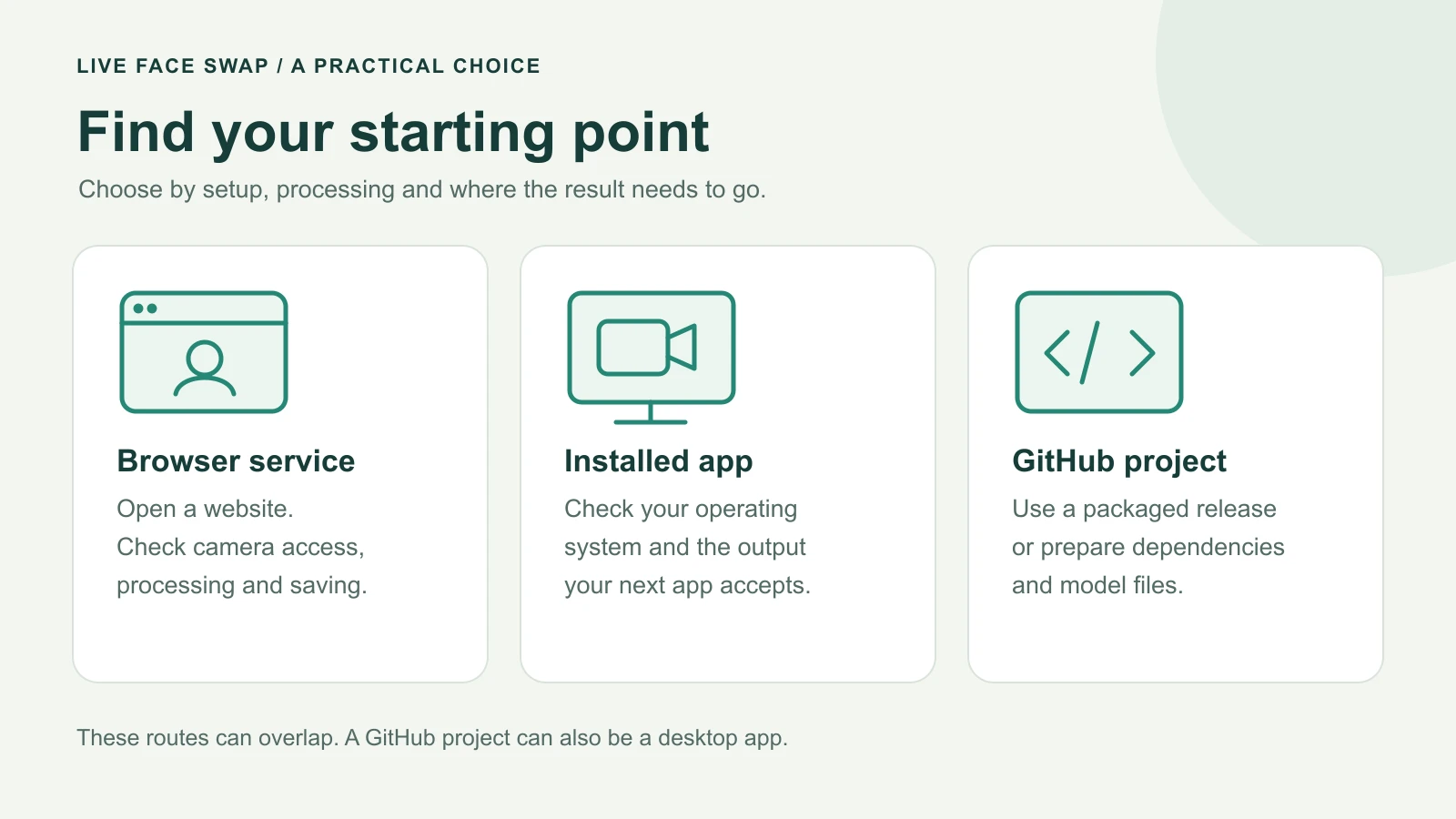
Choose live face swap online for a quick camera test or a short recording without installing an AI tool. Choose a desktop app when its output works with your streaming or calling software. Consider a local open-source setup when on-device processing or customization is worth the extra setup.
Start with two questions: Where should the result go, and where will your video be processed?
Three ways to get started
Browser service. Open a website, allow camera access and follow its setup. A cloud service handles the AI processing remotely; a tool that processes locally in the browser uses your device. Check which approach the service uses before uploading a face.
Desktop app. Install software for your operating system. A live face swap app may offer a virtual camera or another output for external software. It can still use cloud AI: an installed interface does not establish where processing happens. One desktop provider explicitly describes cloud processing.
Open-source project. Start from source code or a packaged release, often on GitHub. These projects can also run as desktop apps. Searching for live face swap GitHub can lead to manual setups involving dependencies and model downloads, as the Deep-Live-Cam installation guide illustrates. Community portable builds aim to reduce that work; check who maintains the package.
Compare what you need to prepare
What to check | Browser service | Installed app | GitHub project |
|---|---|---|---|
Setup | Supported browser and camera permission | Compatible OS, installer and permissions | Packaged release, or dependencies and models |
Account | Often required for cloud generation | Depends on the service | Depends on the project and connected services |
Device and network | Cloud AI needs a stable connection; local browser AI needs suitable hardware | Hardware and network depend on where AI runs | Check supported hardware, model downloads and any APIs |
Privacy | Check whether video leaves the device | Check whether video leaves the device | Verify the actual data flow |
Output | Preview, download or external output, depending on the tool | Recording or virtual camera, when supported | Depends on the implementation |
Cost | Credits, subscription or free limits | License, subscription, credits or free tier | Hardware, setup time and any paid services |
These are starting points, not exclusive categories: an open-source project may provide an installed app, and either interface may use cloud processing.
Choose by the task you want to finish
Try a look quickly. A browser workflow is a practical first stop. Prepare a clear reference image you own or have permission to use, check the price and run a short session. A camera preview alone does not show the generated effect.
Record a short clip. Check the complete path: generated result → recording → replay → saved file. In a mobile face-swap discussion, a user reported downloading a single frame when they wanted the whole video. Before making a long take, save a short test and play it outside the tool, with sound if needed.
Stream or join a call. Choose a tool with a documented output path for your destination app. A visible preview needs a way into OBS or your call software. OBS Virtual Camera can share an OBS scene as a webcam, but you still need to get the processed video into that scene.
Process without a network connection. Look for an explicitly local workflow. Download the required files first, then test whether generation still works offline. Account checks or remote processing may prevent it.
Check privacy and the real cost
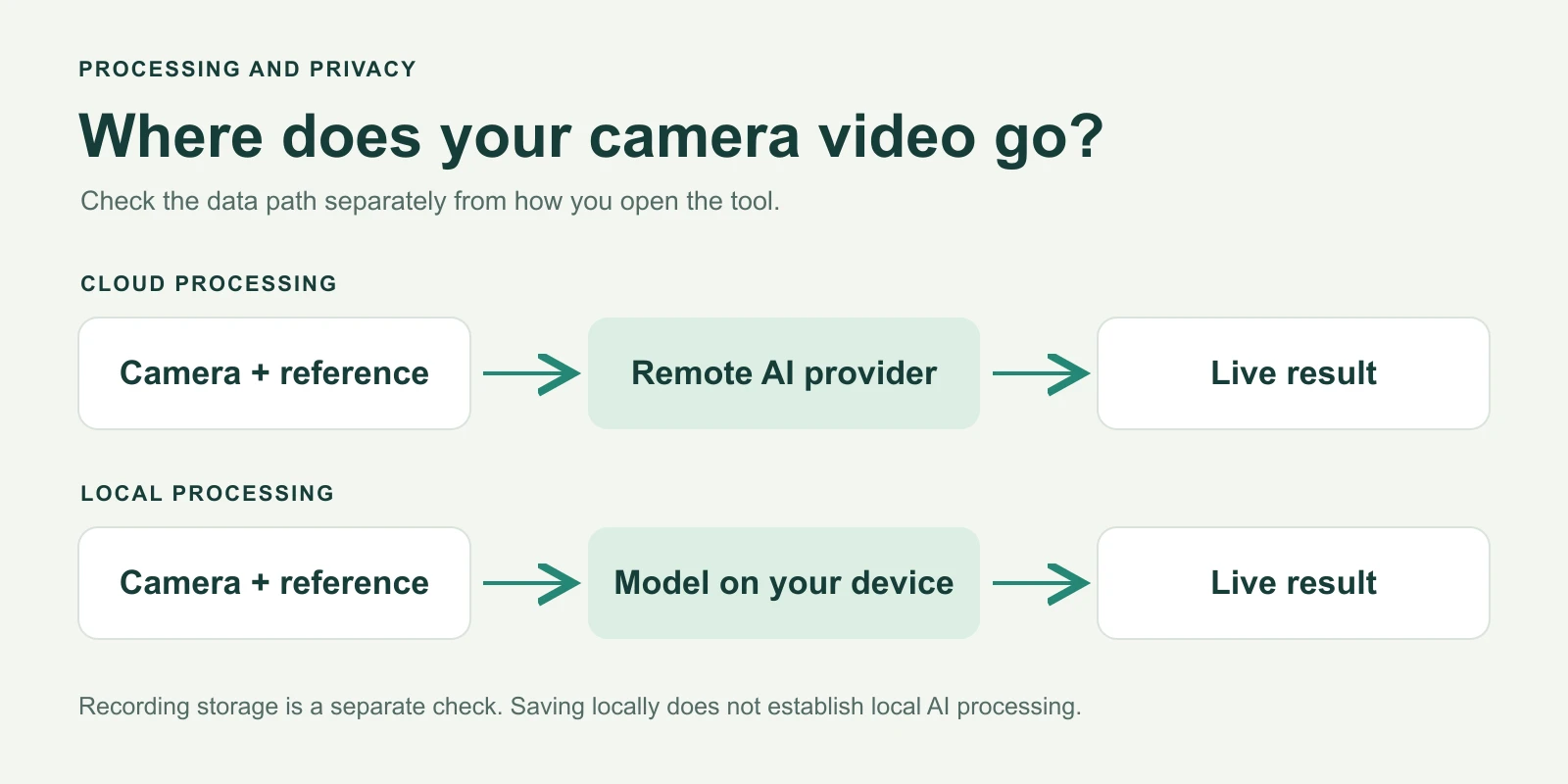
Saving a recording locally does not establish that AI processing is local.
Privacy can decide the choice: one participant in a real-time workflow discussion prioritized local processing for that reason. Check where the reference image, camera frames and recordings go. A locally saved recording can still come from a cloud-processed stream.
For cost, compare the work you expect to do. A few short clips may suit usage-based billing; frequent use may justify a local setup. Include installation time, hardware and maintenance in that decision. Free downloads and open-source code do not establish unlimited free processing or unrestricted model use.
Try a short browser session
At live-face-swap.net, you can generate from your webcam and save a recording without installing a desktop AI tool.
-
Choose a built-in look or an authorized reference image.
-
Open the camera for a local preview. Sign in, check your credits and the displayed engine rate, then click Face Swap to begin generation.
-
When a live result becomes available, recording starts automatically and requests microphone permission. Refusing audio access still allows a silent recording.
-
End the session, replay the clip and save it before closing the tab.
Camera preview is free; AI generation uses credits. Check the current plans and engine rates before starting. During generation, the reference and camera video go to the selected model provider, while recordings stay in your browser. This site provides browser creation and local recording. Prism Face Swap can also open a separate result window for OBS capture; OBS supplies the external virtual-camera route. The optional Meet extension is for installed users and is not publicly listed yet. The download page does not provide a released desktop installer. See the current OBS setup. See the recording guide and privacy policy.
For a short creative clip, start with the browser studio. For a stream or call, confirm the receiving app can use the output before choosing a tool.