
Virtual Fitting Room Privacy: What Happens When You Turn On Your Camera?
Follow your webcam video, garment reference, and recording through each step of live virtual try-on, from opening the preview to stopping and saving.
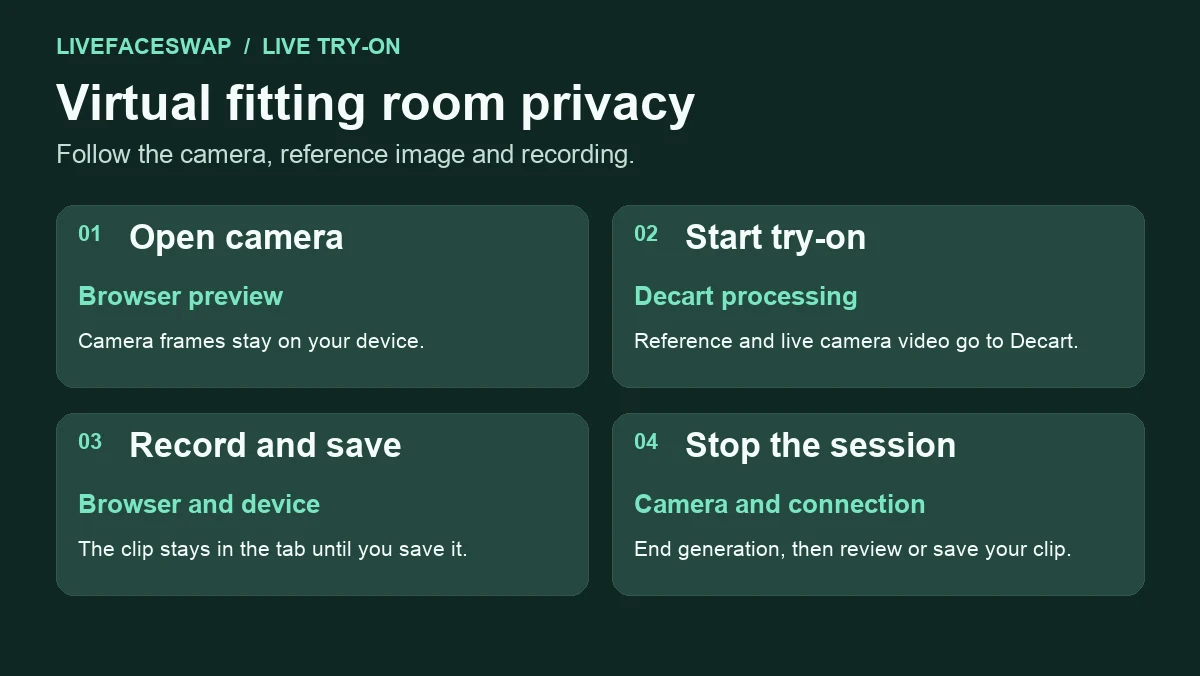
A camera permission prompt can appear before you’ve even decided to try on an outfit. On LiveFaceSwap, Open camera shows a preview on your device. Start try-on begins a separate step: the garment reference and live camera video go to Decart for processing. If you record the result, the clip is assembled in your browser and stays in that tab until you save it. LiveFaceSwap privacy policy
These actions can happen within seconds of each other, so it helps to know which button does what. This guide follows one jacket try-on from picking a reference through saving a clip. It describes the LiveFaceSwap webcam workflow. A fitting room that asks for a selfie, for example, can have a different transfer and storage policy.
1. Choosing an outfit and opening the preview
You can browse the built-in outfits before asking the browser for camera access. If you choose an image from your device, the site can show it in the browser while you prepare the session. Selecting it and starting the try-on are separate actions. If you only want to see what the site offers, open the example gallery and leave the camera off. Try-on studio · Privacy policy
When you select Open camera, your browser may ask whether this site can use the camera. If you allow it, you can see how much of your upper body is in frame. The preview stays on your device. If you previously granted access, you may see the preview without a new prompt. Browser settings let you review the permission after the session. LiveFaceSwap camera notice
Use the preview to check the part of the room that would be visible during generation. Move a document out of the shot, turn away from a screen with private information, or move the camera to frame only the area you need. An over-the-shoulder reflection can show more than you expect, so look at the whole image before you start. If the preview is blank or the permission was blocked, see the webcam setup and troubleshooting guide.
2. Starting live generation
The next step is deliberate. Choose Start try-on after reviewing the processing notice and rate. LiveFaceSwap’s current try-on engine is LFS Mirror, provided by Decart. The clothing reference passes through the site’s authenticated connection relay to Decart. Camera video goes to Decart over its real-time video connection. The relay does not store the reference or camera frames. LiveFaceSwap privacy policy · Try-on studio
At this point, movement in front of the camera matters. If someone walks into the frame or a label becomes readable when you turn, it can be part of the video sent while the session is active. The generated result you see is a separate view. Even if the output covers or changes something in the image, the provider needs the incoming camera view to make that result. Keep the input framing in mind as you use the tool.
The service also needs information to manage the session. The site’s policy describes keeping session status, timing, confirmed usage, and reserved or billed credits. Those records serve a different purpose from the garment image or video frames. A question about a credit charge may be answered from a session record. A question about media already processed by Decart depends on Decart’s privacy policy and API terms. LiveFaceSwap privacy policy · Decart privacy policy · Decart API terms
This 24-second diagram follows the data through the four stages. The camera path and the recording path separate when the session starts.
3. Recording the result and choosing whether to include audio
The browser records the generated view locally. The try-on page offers recording controls and a separate option to include microphone audio. If you choose to include audio, your browser can ask for microphone permission. If you decline or the microphone is unavailable, the clip can still be recorded without sound. The audio used for the recording stays local and is separate from the camera video sent for generation. Recording controls and notices · LiveFaceSwap privacy policy
There are two moments worth checking here. Before recording, look at the microphone option and decide whether you want the clip to include the room’s sound. After recording, replay the clip before sharing it. Check both the picture and, if you included audio, the soundtrack. A short clip may contain background conversation even if nobody else appears in the image.
The recording is available in the current tab for playback and saving. Save creates a file you can keep on your device. Once saved, that file is under your control. If you copy it into a synced folder or upload it somewhere, the copy follows the settings and policies of that destination. Keep the tab open until you’ve saved the clip you want. LiveFaceSwap recording FAQ
4. Stopping the session and handling copies
Select Stop when you’re finished. Stopping ends the live connection and the local camera use. Switching to a different tab or ending the recording alone can leave generation running. A connection failure can also delay confirmation of session usage. Check the session status when you return if the connection dropped while you were stopping. LiveFaceSwap privacy policy · Try-on session controls
Ending the session, removing a file from your device, and requesting deletion of service-held data are three different actions. If you downloaded the clip, manage that file and any shared copies where you saved them. For a request about your account or information held by LiveFaceSwap, use the contact listed in the privacy policy. Media already received by Decart is handled under its own terms. A stopped session provides no confirmation that the provider has deleted earlier inputs. LiveFaceSwap privacy requests · Decart privacy policy
Camera permissions and cookie choices are separate
The browser’s site permissions govern whether the page can open the camera or microphone. If you share your computer or only wanted to use the webcam once, you can review these permissions after stopping. A browser may remember an earlier decision, so the absence of a new prompt on your next visit can simply mean you already made that choice. If you change the permission while a session is active, return to the studio to check the session status and use its stop control when available.
Cookie settings are a separate choice. They cover website storage and optional analytics as described in the privacy policy. If you want to understand what happens to your webcam video, look at the camera permission and the try-on processing notice. If you want to review how the site measures visits and interactions, use the privacy policy and the footer’s cookie settings. These controls answer different questions about the same visit. LiveFaceSwap privacy policy
Quick answers before you start
Can I use the preview without sending camera video to the model?
Yes. Open the camera to frame yourself and leave generation stopped. You can also browse the example looks with the camera off.
Does turning off the microphone stop camera processing?
The microphone option controls audio in your recording. To end live video processing, use Stop in the try-on studio.
What if I close the tab before saving?
The recording is kept in the current tab for playback. Save it before leaving if you want a copy. If you’ve already downloaded a clip, closing the tab won’t remove the local file.
For a first session, choose a built-in garment and check the input frame before starting. Decide whether to record sound, select Stop when you finish, and save only the clip you want to keep. Open the live try-on studio