Live Face Swap on Mac, Windows, iPhone and Android: A Checklist
Check camera permission, live AI, recording, audio and downloads on your actual device. Use a five-stage test instead of assuming browser compatibility.
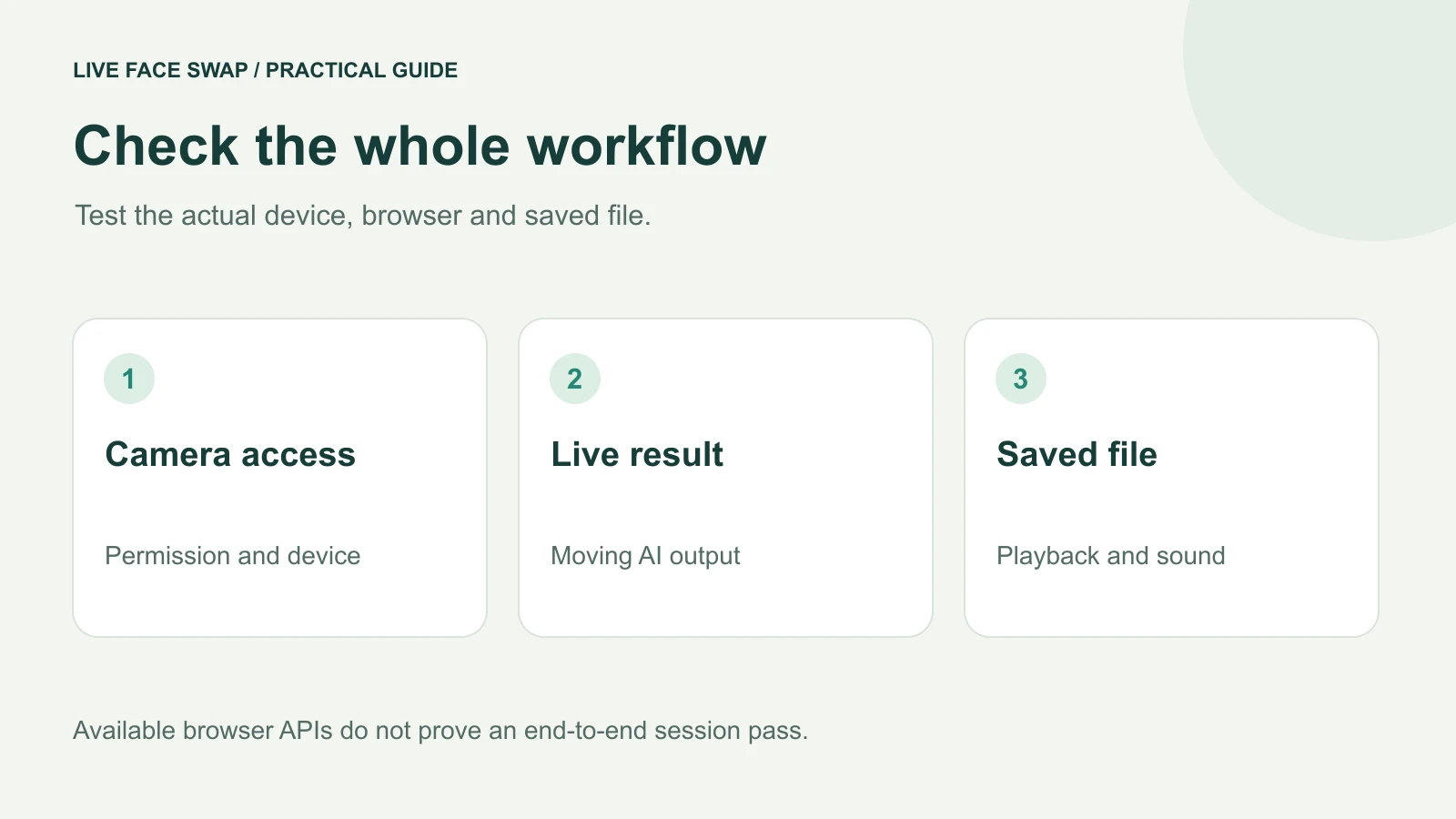
For live face swap on Mac, Windows, iPhone or Android, check the complete browser workflow rather than the operating-system name alone. You need camera access, a working live connection, recording support if you want a clip, and a saved file that plays where you need it. A page loading successfully proves only the first part.
The site's current starting recommendation is a recent desktop Chrome or Edge browser. Other browser and device combinations need an actual session check. This guide gives you the same short procedure for each device, without presenting untested combinations as a compatibility pass.
Check capabilities before starting the model
Open the studio directly in your browser, then expand Camera checks & session diagnostics. The panel checks Camera preview, Real-time connection and Local recording. Camera names can appear after you grant permission; stop the camera before choosing another device.
These checks look for browser features. They do not turn on the camera, run the model or prove that your device can finish a recording. A recording-format check can succeed while a later recording fails for lack of resources. How browser format support is checked
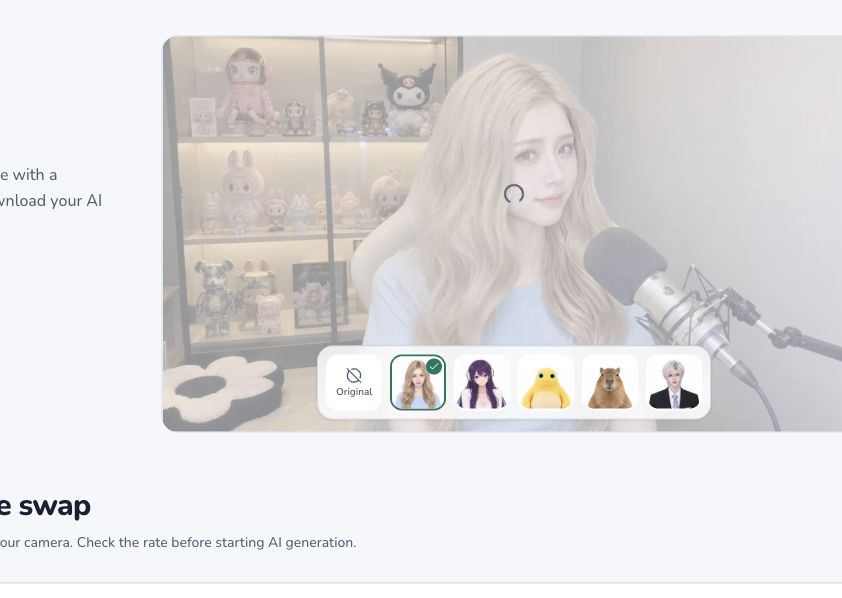
Available APIs are a starting check, not a completed device session.
Write down the browser and version, operating system, camera and intended engine. If you switch browsers later, treat that as a new combination. A working camera in one app does not establish that another browser has permission or can record the same format.
Use the right permission checklist for your system
System | Starting point | Permission focus | What to verify |
|---|---|---|---|
| Windows | Recent desktop Chrome or Edge | System camera access and site permission | Preview → AI → record → save → replay |
| macOS | Desktop browser; start with Chrome or Edge | Browser camera permission; OBS capture separately | Test the actual saved format |
| iPhone | Direct Safari session | Website camera and microphone choices | Complete a short take before locking |
| Android | Direct Chrome session | Chrome app and website permissions | Check the saved file on this phone |
Windows: check device and desktop-app access
In Windows 11, review Settings → Privacy & security → Camera. Check camera access and the setting that allows desktop apps to use it, then check the site's permission inside the browser. If a managed device locks the setting, ask its administrator. Microsoft camera troubleshooting
Begin with a recent Chrome or Edge window and one physical camera. Close another app if it is occupying that camera. Keep the test focused on the browser studio before adding OBS or a meeting, so you can see which part works independently.
Mac: check the browser and website
Review System Settings → Privacy & Security → Camera for the browser you intend to use. In Safari, website camera controls are also available under Safari → Settings → Websites → Camera. Follow any restart request after saving work. Apple camera permissions
Test the saved file as well as the live picture. If you add OBS, its screen-capture permission is a separate check from the browser's webcam permission. The OBS guide describes the desktop output window and macOS capture path; it is not a guarantee for every browser and system combination.
iPhone: check the actual Safari session
Open the site directly in Safari rather than relying on a preview inside a social app. Review the camera and microphone choices for the website. Apple's current guide describes the page menu's Website Settings and the separate camera and microphone controls. Safari website permissions
Keep the phone stable and the page visible during the first check. Choose a short take and confirm where the browser saves it. Do not assume a mobile browser can use desktop OBS or the Meet extension simply because it can open the studio.
Android: check Chrome and Android permissions
For live face swap on Android, open the site directly in Chrome and review Settings → Site settings → Camera or Microphone if access was blocked. Also check Chrome's permission in Android settings. Google's Android camera and microphone guide
A cloud browser workflow differs from an Android app that downloads models for local processing. Do not apply another app's chipset requirements or reported speed to this site. Record the actual phone, browser and session result when deciding whether your setup works for the task.
Run the same five-stage test on each device
First, check the local preview. Choose a reference you have permission to use, open the camera and make a gentle turn. Confirm that the original picture moves and the intended camera is selected. This stage does not start AI generation.
Second, check the generated result. Sign in when prompted, review the selected engine's rate and deliberately start Face Swap. Wait for the transformed picture to move. Browser capabilities alone do not prove that the account, network and model connection are ready.
Third, check recording and voice. Wait for the recording indicator, then say a short line and make a small movement. Allow microphone access if you want sound, or deliberately make a silent clip. Confirm that the recorder has started before performing the part you want to keep.
Fourth, end and save. Select End session and wait for the recording to become ready. Use Download on the save bar. Expand Show recording options for playback and sound information once the active session has ended. Keep the original tab open while saving.
Fifth, open the actual file. Find it in your downloads or chosen destination, then check the whole take with sound. A visible thumbnail or a download request does not prove the file is playable. Use the recording guide if saving is the first failed stage.
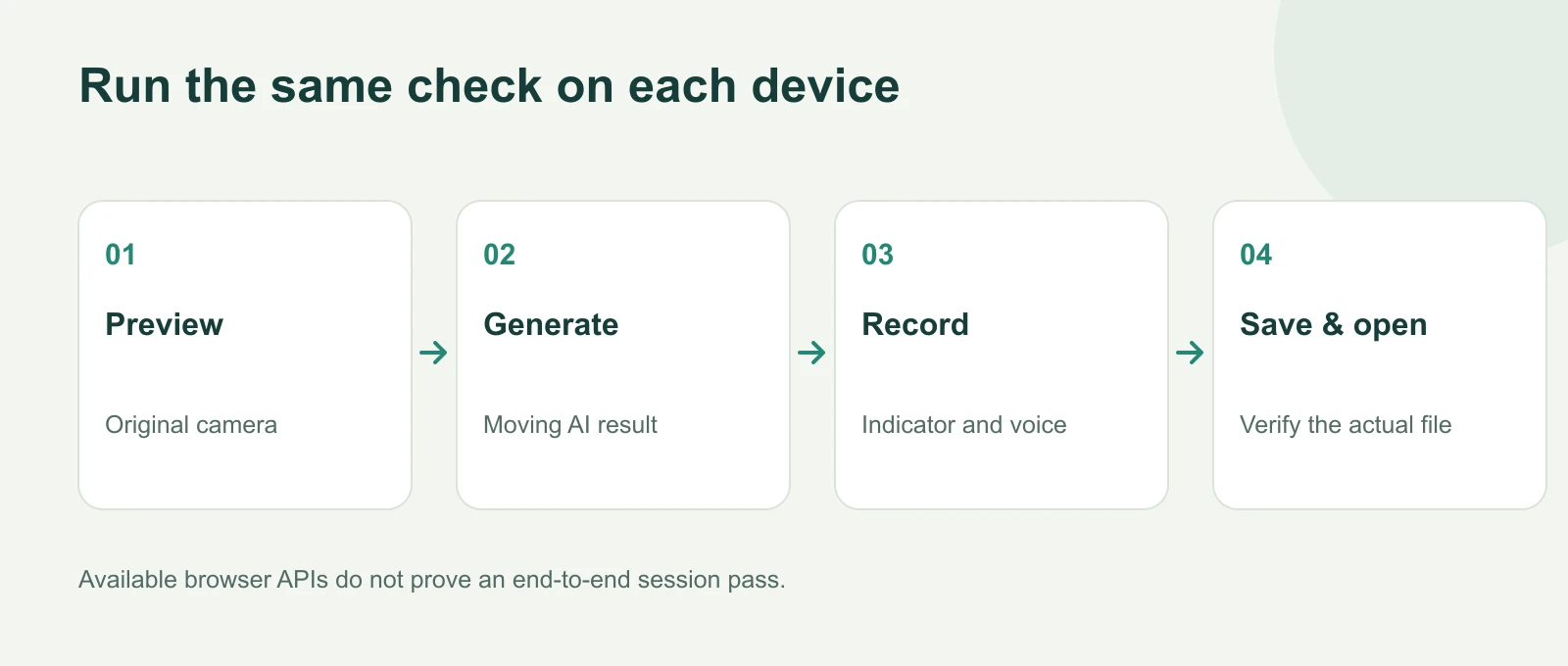
Run the same short check on each actual device and browser.
Keep this test brief and read the credit rate first. A suggested take length is not an automatic spending cap. Record the device result as “preview passed, AI passed, recording failed,” for example, instead of a single overall tick that hides the failed step.
Check formats and interruptions separately
The recorder uses supported browser formats, which can produce MP4 or WebM. A successful browser replay does not establish that a particular editor accepts the file. Open a short original in your target editor before filming a longer version, and retain it until any converted copy has been checked.
Keep enough storage for the saved file and avoid unnecessary load during the first test. The page does not deliberately end generation when you switch tabs, so AI can keep using credits in the background. The browser or operating system can still interrupt media, particularly when a phone locks or an app is suspended.
For a first mobile take, finish and save before locking the screen. If you want to test background behavior later, do it as a separate controlled check. Reopen the workbench to inspect the session and settlement status after an interruption; do not assume that closing a visible preview completed every server-side step.
Keep desktop output and desktop downloads distinct
The desktop Prism workflow can open an OBS result window for capture. OBS then handles its own recording, streaming or virtual camera. Test that output separately after the browser workflow succeeds, including the meeting microphone and the destination's private preview.
The optional Meet extension connects installed users' website output to a supported Meet tab. It is a desktop Chrome extension path, not evidence that the phone browser exposes the same camera. Check current availability before planning around it.
The site's download page currently collects Windows or macOS interest and directs users to the browser. It does not supply a released installer. Use the online workflow while assessing your device, and report the exact failed stage, error, browser version and session identifier if you need help.