
Live Face Swap for Original Characters: Plan and Record a Short Clip
Create a short character performance with an authorized reference, a repeatable webcam script, local recording and a full motion review.
Use a live face swap character workflow to turn one short webcam performance into a clip you can review and keep. Start with an original character you have the right to use, choose a readable reference and rehearse one line before starting AI. In the studio, LFS Prism is the character-replacement option; its changes can include hair, clothing and other parts of the appearance.
This guide follows a suggested twelve-second performance. The storyboard is a planning example, not a claimed recording or a guarantee that a model will reproduce every design detail. You will judge the actual result in motion before deciding whether to save or share it.
1. Give the character one small job
A short clip works better when you know what the character is trying to do. For example, imagine an adult fictional archivist who has just found a missing page before sunrise. Give the character one visible reaction and one line: “Found it. One last page before sunrise.”
Write a few appearance details that matter to you, such as short copper hair and a teal jacket, and a performance direction such as quiet relief. These are planning notes for choosing your reference and acting the scene. The reference and your live camera supply the material for the transformation.
Keep the first scene simple. One line, one expression change and a small turn give you specific moments to inspect. If the idea depends on complicated hand props, a fast spin or several people, first make a simpler baseline and see how the selected mode interprets it.
Planning note | Example | Why it helps |
|---|---|---|
| Character | Fictional adult archivist | Use an owned or authorized design |
| Goal | Find the missing page | One clear reaction |
| Appearance | Copper hair, teal jacket | Pick the details you will inspect |
| Performance | Relief, a short line, a gentle turn | Keep the first take repeatable |
2. Choose a reference you can use and inspect
Use your own character artwork or a reference you are authorized to transform and share. If a real person's likeness is involved, follow the site's requirement for yourself or an explicitly authorized adult. Do not assume that a character found in an image search is available for your intended project.
Start with a single readable face, visible eyes and mouth, even lighting and enough space around the head. A head-and-shoulders composition is an easy first comparison. Strong profiles, tiny faces, heavy obstruction or several people make it harder to tell which appearance you intended.
The live picker currently accepts one JPEG, PNG or WebP up to 4 MB and 16 megapixels. Prism requires both dimensions to be at least 128 pixels; Mirror requires at least 512. These are upload thresholds, not a promise that a small or heavily compressed face will work well. Use the full reference preparation guide.
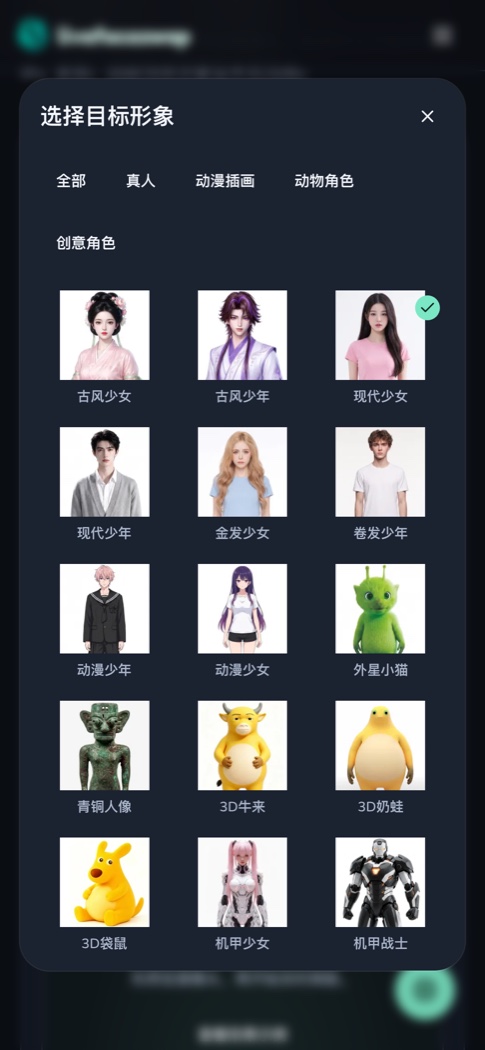
The existing gallery illustrates reference selection, not a generated clip from this tutorial.
Built-in looks can help you understand the selection workflow before trying your own design. Check the selected thumbnail, then decide whether that look belongs in your scene. A preset being available in the gallery does not establish ownership of unrelated characters or authorize an imitation of a real person.
3. Pick the transformation you actually want
Choose Face Swap with LFS Prism for the character-replacement workflow described here. It can reinterpret more than the face. If keeping your original clothing and surroundings is important, compare the intended behavior of LFS Mirror's Face Swap mode, which focuses on the face while aiming to preserve the original body, clothing and scene.
For an overall anime or cartoon treatment of the camera scene, Restyle is another creative task. It uses Mirror and changes visual style; it is not the same operation as reproducing a particular reference identity. The face versus whole-character guide explains how to judge the scope of a change.
Select one effect and engine for the first take. Do not use the rate as a ranking of appearance quality. Look at the current quote, plan a short session and judge the moving result against the parts of the design that matter to your scene.
Compare the same movement on both sides. This silent, prerecorded Xmax example shows how character replacement can change hair and clothing.
4. Rehearse while the camera preview is free
Open the browser studio, choose the reference and select Open camera. Check eye-level framing, light and the space around your head. Remove private items or other people from the background before you start cloud processing.
Say the line once and make the small turn in the original preview. Check that your face remains visible. Put the script somewhere you can glance at without turning completely away from the camera. Prepare the performance before starting AI so you spend less connected time deciding what to do.
The original preview is still your own appearance. Sign in when prompted and start Face Swap only when you are ready for generation. Read the usage notice and displayed rate first. See which stages use credits.
5. Perform a short, repeatable take
Wait until the generated result moves and the recording indicator appears. Automatic recording may first request microphone access. Allow it if you want to keep your voice, or deliberately make a silent test. The visual effect does not change your voice into the character's voice.
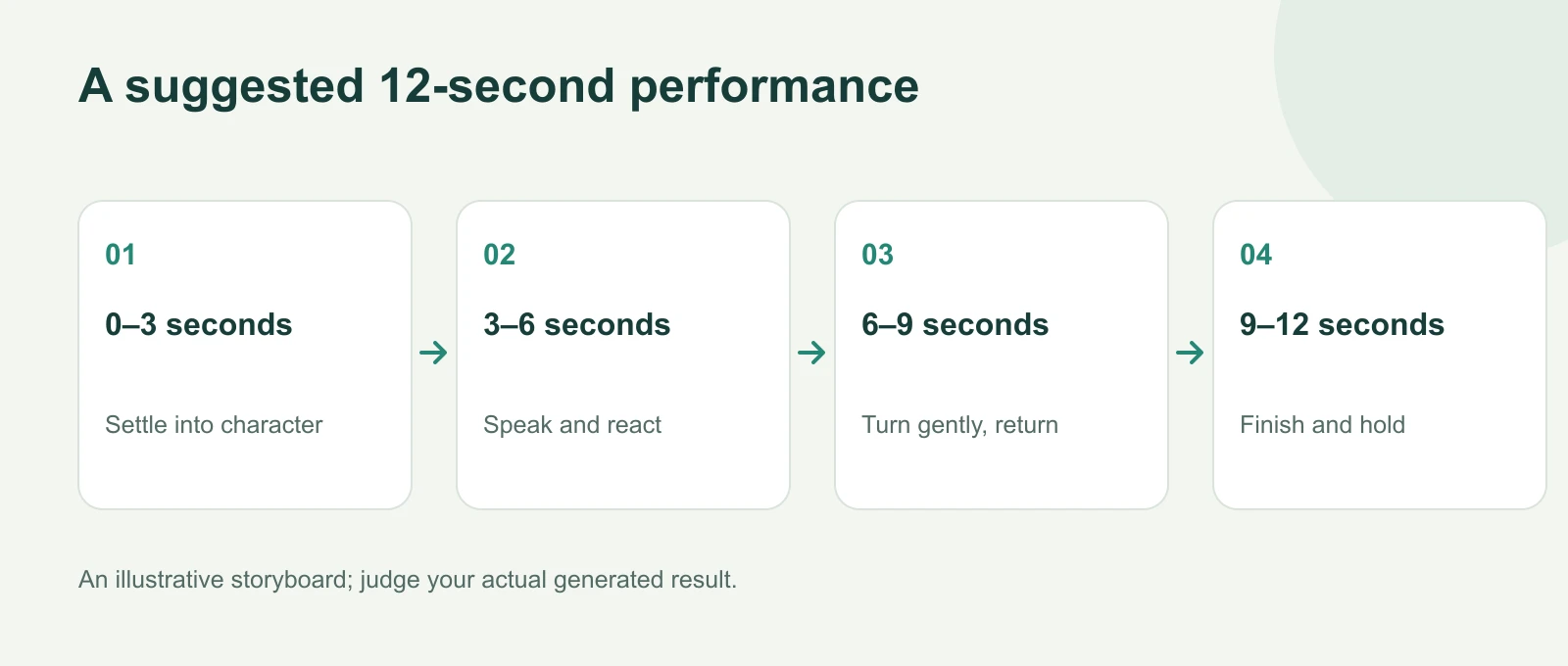
An illustrative storyboard; review your actual generated take.
For the opening three seconds, face the camera and settle into the character. Over the next three seconds, say the first part of the line with a small expression change. Use the next three seconds for a gentle turn and return. Finish the line and hold the final expression for the remaining three seconds.
This script gives you four moments to compare: a neutral face, speech, a turn and a held expression. It is a suggested performance length, not an automatic session limit. Keep watching the live status, and use End session when your take is complete.
6. End, save and review the whole clip
End session finishes recording and starts generation shutdown and settlement. Wait for the save bar to show Recording ready. Select Download, then expand Show recording options for playback and audio information once the active session has ended.
Open the actual saved file and watch the entire take. Inspect eyes and mouth during the line, the face outline while turning, and hair or clothing details that matter to the character. Also inspect hands and background if they entered the scene. A strong first frame is not enough to choose a performance clip.
Listen for your voice if you allowed the microphone. A silent recording cannot recover speech it did not capture. Save the clip before leaving or refreshing, because the recording remains temporary in the original tab. The recording and download guide covers the controls and file formats.
7. Change one thing for the next take
Make a short note: “The face reads clearly when speaking, but the turn changes the hair too much,” for example. Then choose one change to test, such as a more frontal reference, softer light or a smaller movement. Keep the remaining conditions and the line similar.
Save the first recording before replacing a reference or starting another take. The workbench locks reference changes while the camera or session is active and while a clip needs saving. Record again can ask you to confirm replacement of a previous clip; keep a downloaded copy before accepting.
Share it as an intentional AI performance
Review the use rules and the media data flow before publishing. A useful caption can say that this is an original character performance with an AI-transformed appearance. Avoid presenting it as evidence of something a real person said or did.
Keep the original reference, your permission information and the saved take with the project. If you need a live call or broadcast instead of a file, test the separate output route privately first. A character clip that works as a download does not automatically validate a meeting camera or a streaming scene.