
Live Face Swap Lag or Flickering? Read the Diagnostics First
Separate startup wait, motion delay, dropped frames and flickering. Use current session diagnostics and a controlled short test to find the next check.
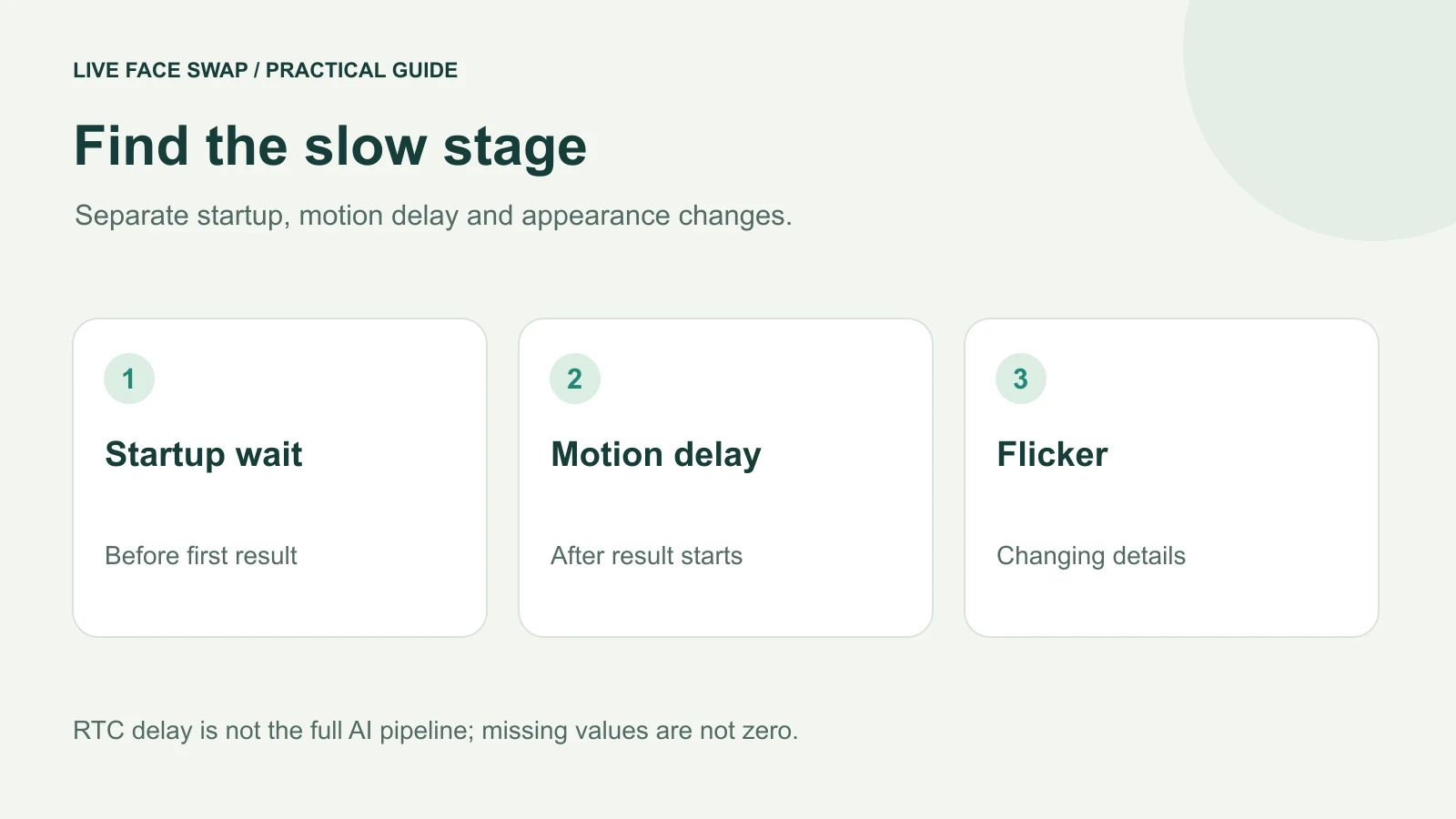
To investigate live face swap lag, first decide whether you are waiting for the first result, watching delayed motion, seeing dropped frames, or noticing the appearance flicker. These symptoms need different checks. Open Camera checks & session diagnostics in the studio, compare the original preview with the generated result and change one condition at a time.
The panel now shows session stages and, where available, video connection metrics. Use them to describe your session. They do not provide a universal speed score or prove that every decoded video frame is a newly generated AI frame. This guide explains what to look at before another paid test.
1. Name the symptom before changing settings
Startup wait is the time before the first moving generated picture appears. Motion delay is what you notice after a result is already running: you turn or speak, then see the response later. Dropped or uneven frames look like jumps in motion. Appearance flicker changes facial details, hair or other visual features between frames.
You can have one symptom without the others. For example, a smooth but delayed video is different from a responsive picture with unstable facial detail. An image that stops entirely may instead mean a disconnected or ended session. Use the general troubleshooting checklist when a stage fails, rather than trying to tune a session that is no longer active.
What you see | What to separate | First observation |
|---|---|---|
| No first result | Startup or failed connection | Stage labels and visible error |
Smooth but late motion | Ongoing response delay | Compare performed action with displayed action |
| Motion jumps | Capture, transport or playback | Original preview and available FPS samples |
| Changing face details | Appearance consistency | Reference, light and matched actions |
| Only OBS is frozen | External output path | Result window, capture source and permission |
2. Check the original camera before using credits
Open the studio, choose a reference and select Open camera. Watch the original picture while you blink, speak and turn gently. If it is already dark, smeared or jerky, establish a better camera baseline before asking the model to transform it.
Use even light, a stable camera position and one clearly visible face. Close an application that is occupying the same camera. Stop the preview before selecting another camera in the checks panel. The free preview helps separate a capture problem from something that appears only after cloud generation starts.
If the preview is clear but the generated appearance varies, try a better exposed reference with visible features. Keep the engine unchanged during that comparison. Replacing the photo, changing the light and switching the engine together makes it difficult to tell which change mattered. Prepare a reference you can compare.
3. Read the session stages as separate measurements
Expand Camera checks & session diagnostics. The stage fields include Session request, Reference preparation, Model connection and First visible result. Record their labels and displayed values if you need to report a problem. A dash means there is no sample for that field yet.
The first visible result describes startup to a visible frame in this browser. It does not measure how far a later smile is behind your real smile. Reference preparation and connection are different parts of startup; do not assume that every displayed stage can be added together into a complete latency measurement.
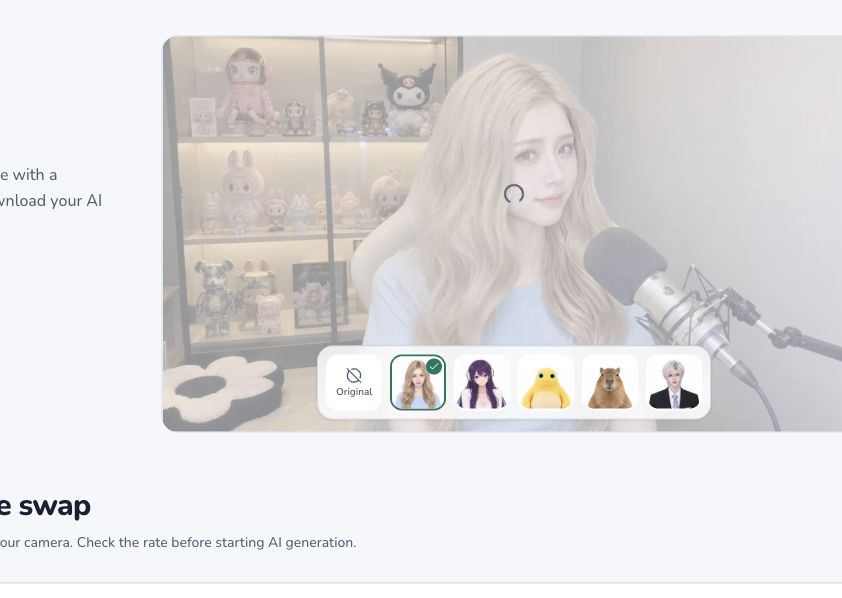
Captured before camera or AI start. Dashes mean no sample, not zero latency.
Prism can expose additional RTC information. Mirror does not expose the same set of RTC metrics in this panel. A missing value does not demonstrate a faster connection or zero delay. Compare matching fields from comparable sessions and keep the engine name with your notes.
4. Read network and frame metrics with their limits
Sent video FPS concerns the video being sent. Decoded video FPS concerns received video decoding. Those fields can help describe uneven transport or playback, but they are not counts of unique AI-generated frames. Received video size describes incoming dimensions, not how accurate a face looks.
Receive packet loss and RTC network describe available connection samples. A poor network sample is a reason to check your connection alongside the visible result. It is not enough to identify a particular router, provider or browser as the cause. Use the same device and reference when checking a different network condition.
RTC media delay excludes the complete AI processing pipeline. Do not publish it as end-to-end model latency. If your goal is to measure motion-to-screen delay, you need a separate observation that includes the performed movement and the displayed result. Keep that measurement distinct from the panel's number.
5. Make one controlled comparison
Prepare a short movement script before starting: face forward, say the same phrase, turn gently left and return, then right and return. Use the same authorized reference, camera position, lighting, browser and engine for both takes. Start the performance after the recording indicator appears so the saved clip contains the actions you want to compare.
For the first take, write down the symptom and the available panel values. End the session, save the recording and label it clearly. Then change one condition, such as removing a background download from the connection or using more even light, and repeat the same actions.
Compare the matching moments in both files. Two live performances will still differ slightly. Repeat a short test if the difference is unclear, and record an inconclusive result honestly. This procedure helps organize a test; it does not establish a minimum frame rate or guarantee that a particular adjustment will fix the problem.
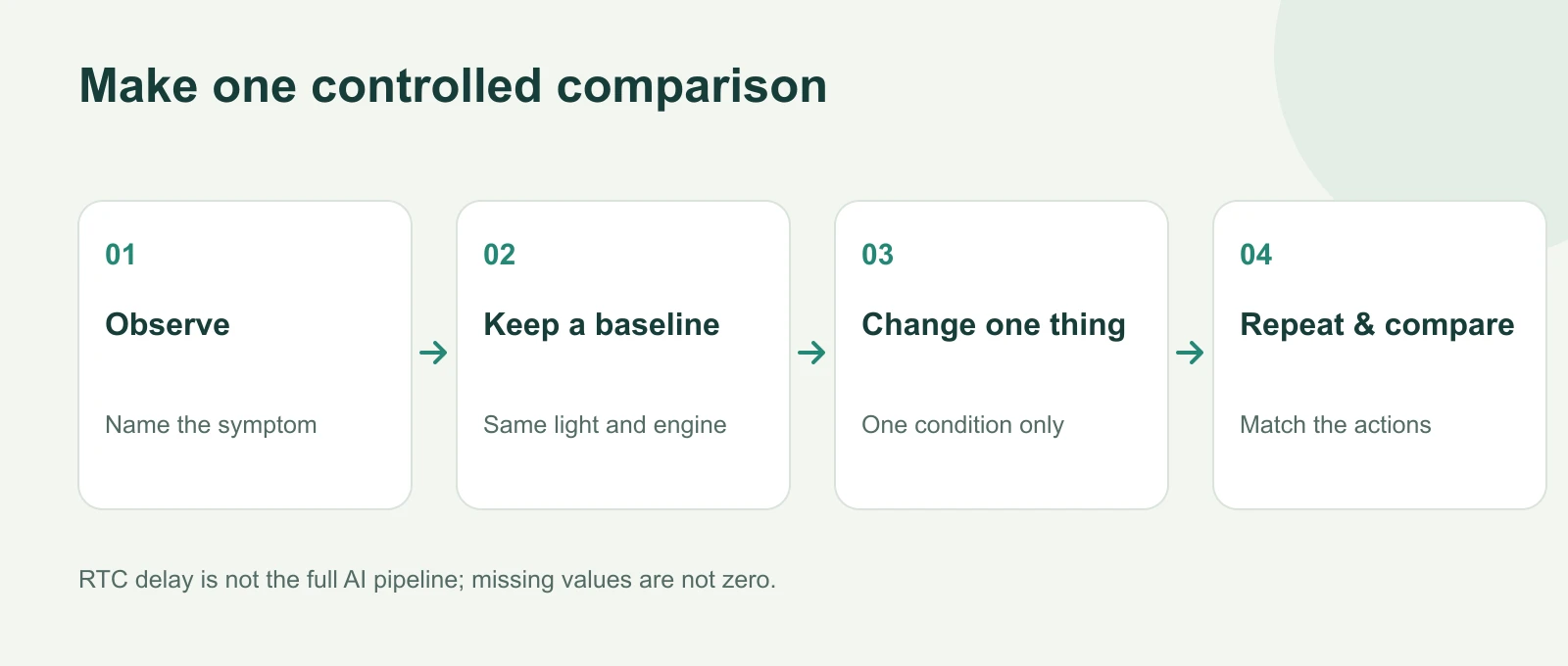
A suggested test method; no benchmark results are claimed.
Keep the takes brief and review the generation rate first. Prism can bill established connection time before the first visible result. Mirror bills generated seconds. A long diagnostic session is still generation usage, even if you decide not to keep its recording.
6. Find where an output problem starts
If the generated preview moves but a saved clip stutters, inspect the clip in the browser and in the destination player. Check whether recording or playback was the first stage where the problem appeared. The site's recording controls and the AI stream are separate parts of the workflow.
For OBS, first check the workbench, then Live Face Swap Output, then the OBS preview. If the first two move but OBS is black or frozen, check the captured window and system capture permission. Keep the output window unminimized. Configure the microphone separately and make a short local OBS recording before broadcasting. OBS setup and capture checks.
If you have the optional Meet extension installed, compare the website result, extension connection state and meeting preview separately. A meeting problem does not automatically mean the AI model is slow. Check the camera selected in Meet and use its microphone controls independently of the website recorder.
7. Finish and report useful evidence
Switching tabs does not stop the site's generation. Browser and operating-system behavior can still interrupt media, especially on mobile or locked devices, so test your actual environment. End generation explicitly when your comparison is finished and wait for settlement instead of leaving an active session running in the background.
For support, include the device, operating system, browser version, engine, date and time, session identifier and exact symptom. Add available stage and connection values, the visible error and whether the original preview, generated result or external output was affected. Review diagnostics before sending and leave out private portraits or recordings unless you deliberately choose to share them.
A useful report says “the original preview was smooth, the live result responded late, and the panel showed these values.” That gives the next check a clear starting point. “It is slow” leaves camera capture, generation, recording and external output mixed together.