
Live Face Swap vs Video and GIF Face Swap: Choose Your Input
Choose live webcam, an existing MP4 or an animated GIF for your face swap. Learn which input preserves your action, audio and intended output.
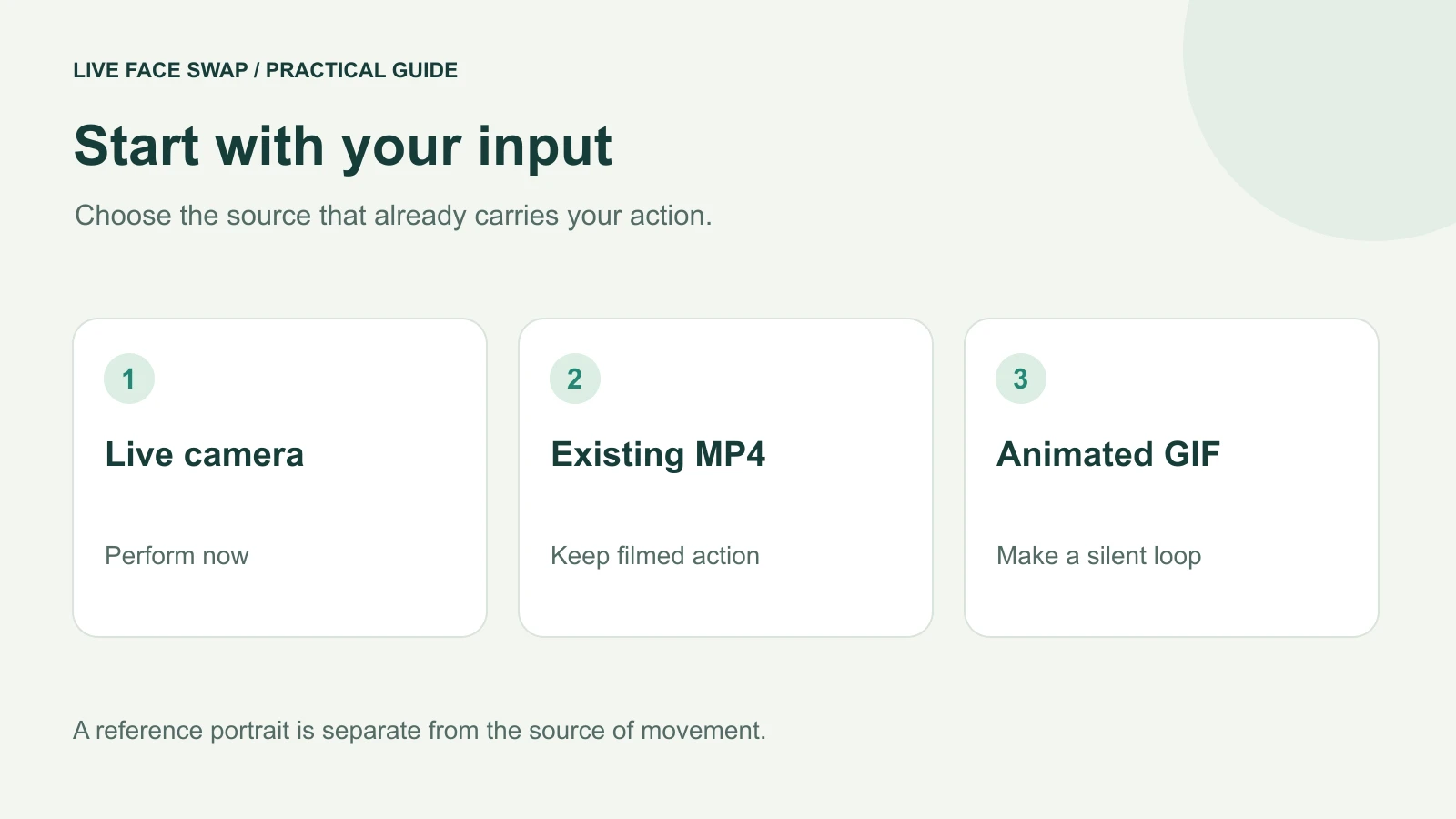
The useful question in live face swap vs video face swap is whether the action is happening now or already exists in a file. Choose the live studio to perform into a webcam and record the generated result. Choose the video tool to change a face in an existing MP4. Choose the GIF tool for a short animated loop. A still portrait supplies a reference; this site does not offer a separate still-photo face editor.
Make that choice before uploading anything. It determines which file you need, when AI processing happens and how you will save the result. A portrait alone cannot tell the site which movements, dialogue or camera scene you want to preserve.
Start with the input you actually have
Imagine two versions of the same request: “I want to say a line as a character” and “I have already filmed the line.” For the first, you can rehearse in the live studio and capture a take. For the second, upload the recording through the video workspace so you can work from those existing movements and original audio.
The reference portrait is separate from the footage that carries the action. In a live session, the camera supplies the action. In an uploaded-video job, your MP4 supplies it. In a GIF job, the animated frames supply it. Choosing a reference does not turn the reference itself into a finished performance.
Input | What it supplies | What you get |
|---|---|---|
| Still portrait | An authorized likeness | Reference for an effect; no standalone photo export |
| Live webcam | A new performance | Record the generated camera result |
| Existing MP4 | Already filmed action and audio | Preview and export a processed MP4 |
| Animated GIF | A short silent loop | Export a processed GIF |
If all you want is a single edited photograph, choose a tool that explicitly supports still-photo output. Uploading that photo as a reference in this studio prepares a video workflow. It does not create a downloadable edited still image.
Use live face swap when you want to perform now
Open the live camera studio, choose an authorized reference and select your AI engine. Open camera lets you check the original picture locally. Sign in, review the rate and start Face Swap when you want the model to transform it.
The important check is movement in the generated result. A moving original preview only confirms that your camera works. Once the transformed result follows your actions, wait for the recording indicator and perform your short line or gesture. Automatic recording can request microphone permission; allowing it adds your voice to the local recording.
Finish with End session, then save the clip from the recording bar. Expand Show recording options for playback and sound information. Playback can remain unavailable while a live session is still active. A downloaded recording can be MP4 or WebM depending on what your browser supports, so inspect the actual file before planning an edit.
Live generation continues to use credits while active, including when you switch tabs. It is useful for trying another expression immediately, but a longer rehearsal is still model usage. Set up your light, camera and line during free preview where possible. Understand preview and generation costs.
Use video face swap when the recording already exists
Open Video Face Swap for an existing clip. The current workspace accepts a 1–30 second H.264 MP4, up to 32 MB, with AAC audio or no sound. Trim a copy first if your source is longer. Keep the original so you can return to it if a different scene or crop works better.
Choose the reference portrait and follow the workspace's subject-selection steps. Read the maximum credit cost before submitting. This is an uploaded processing job, rather than a live webcam session: you do not need to repeat the performance in front of the camera while the job runs.
Preview the complete result before downloading the MP4. Inspect the face during speech, blinks, turns and moments when hands cross it. Check where an original person leaves or re-enters the picture. The goal is to judge the exact footage you plan to use, including moments a good-looking still frame can hide.
The video workflow keeps the source audio in the finished export. That makes it useful for an already recorded spoken line. It is not a voice-changing feature. Review sound and picture together, and read the uploaded-video tutorial for preparation and export steps.
Use GIF face swap for a short loop
The GIF workspace starts with an animated GIF and a reference portrait. Its current source limit is five seconds and 12 MB. A GIF is a sequence of images, so there is no source audio track to preserve. Choose video instead when dialogue or music belongs in the deliverable.
Pick a loop with a visible face and a clear beginning and end. After processing, inspect the repeating transition as well as the middle frames. A face can look acceptable while still and become distracting when the loop jumps back to its first image.
The browser prepares the animation for processing and exports the resulting GIF. Keep the source until you have checked the saved animation in the app where you will use it. A static thumbnail in a gallery is not a complete playback check.
The word “face” does not define every visible change
The selected mode matters alongside the input. In the live studio, Prism performs character replacement, so the look can include hair, clothing and other appearance changes. Mirror's Face Swap mode focuses on the face while aiming to preserve the original body, clothing and scene. Individual frames can still vary.
For an edited MP4, judge the submitted video workflow on its own result. Do not assume that a live engine's character behavior is available in every upload tool. Likewise, Restyle changes a scene's visual style and Try-On interprets a clothing reference; those tasks differ from choosing where to place a reference face.
If a hairstyle or full character is your real goal, read head swap versus face swap before selecting the workflow. That distinction helps you describe the outcome you want instead of relying on a broad tool label.
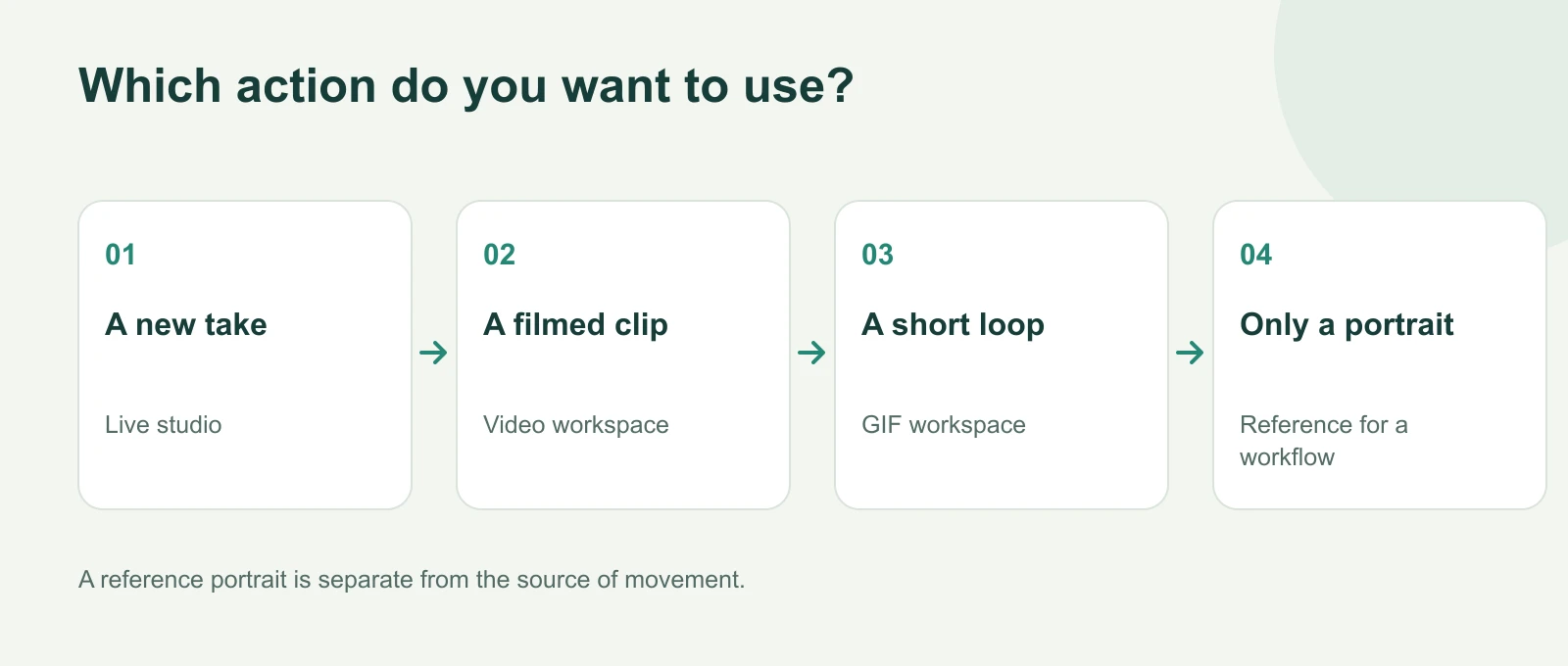
A workflow diagram, not a generated-result comparison.
Sending a result to another app is another step
A saved MP4 or GIF is a file you can share or edit. A live result is an ongoing stream. Neither automatically becomes the camera selected in Zoom, Discord or OBS.
For Prism Face Swap on desktop, Open OBS output creates a separate result window for window capture. Keep the workbench running and select that output window in OBS. Configure your microphone separately, then check a private preview or local recording before broadcasting. Follow the current OBS setup guide.
The optional Google Meet extension is a separate connection path for users who already have it installed; it is not a system-wide camera or a publicly available desktop installer. Check the current availability information instead of treating an extension mentioned in a guide as proof that it is in the store.
Decide with one short test
Write down your intended deliverable: a new spoken performance, an existing MP4 with its audio, or a silent loop. Prepare the matching source, one authorized portrait and a short action you can inspect. Review the displayed cost before starting that workflow.
Save the result and open it from the destination where you need it. For a live recording, verify the file and sound before leaving the tab. For an uploaded job, watch the entire clip. For a GIF, let it repeat several times. Then decide whether another reference or a cleaner source is worth testing.
These checks give you an answer tied to your actual task. For reference preparation, use the reference photo guide; for recording and saving, use the browser recording guide.